How to Change the Color of Clothes in Photoshop: A Complete Tutorial
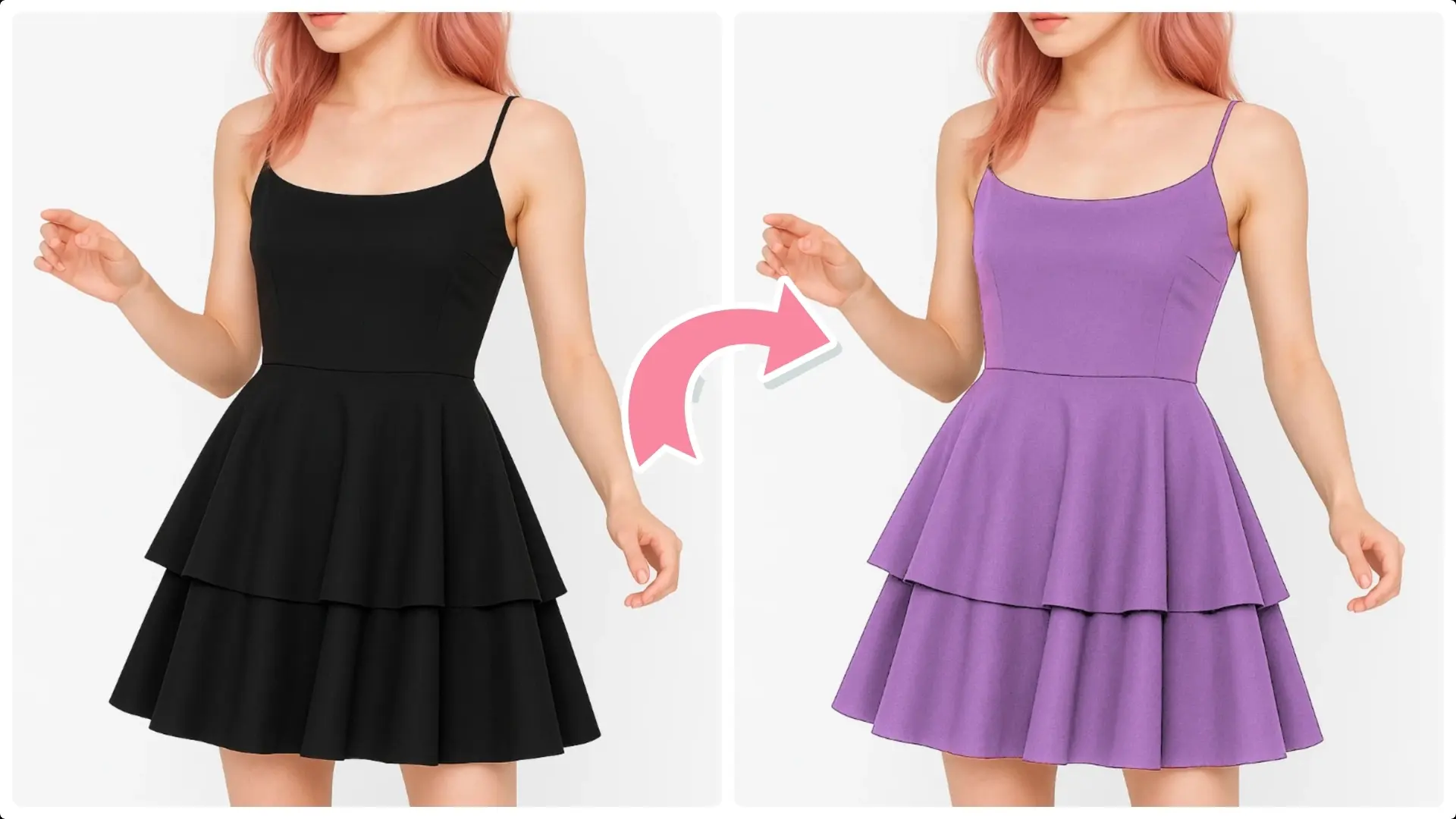
Learn how to easily change clothing colors in Photoshop with our step-by-step guide.
Master tools like object selection and blending modes to transform your images creatively.
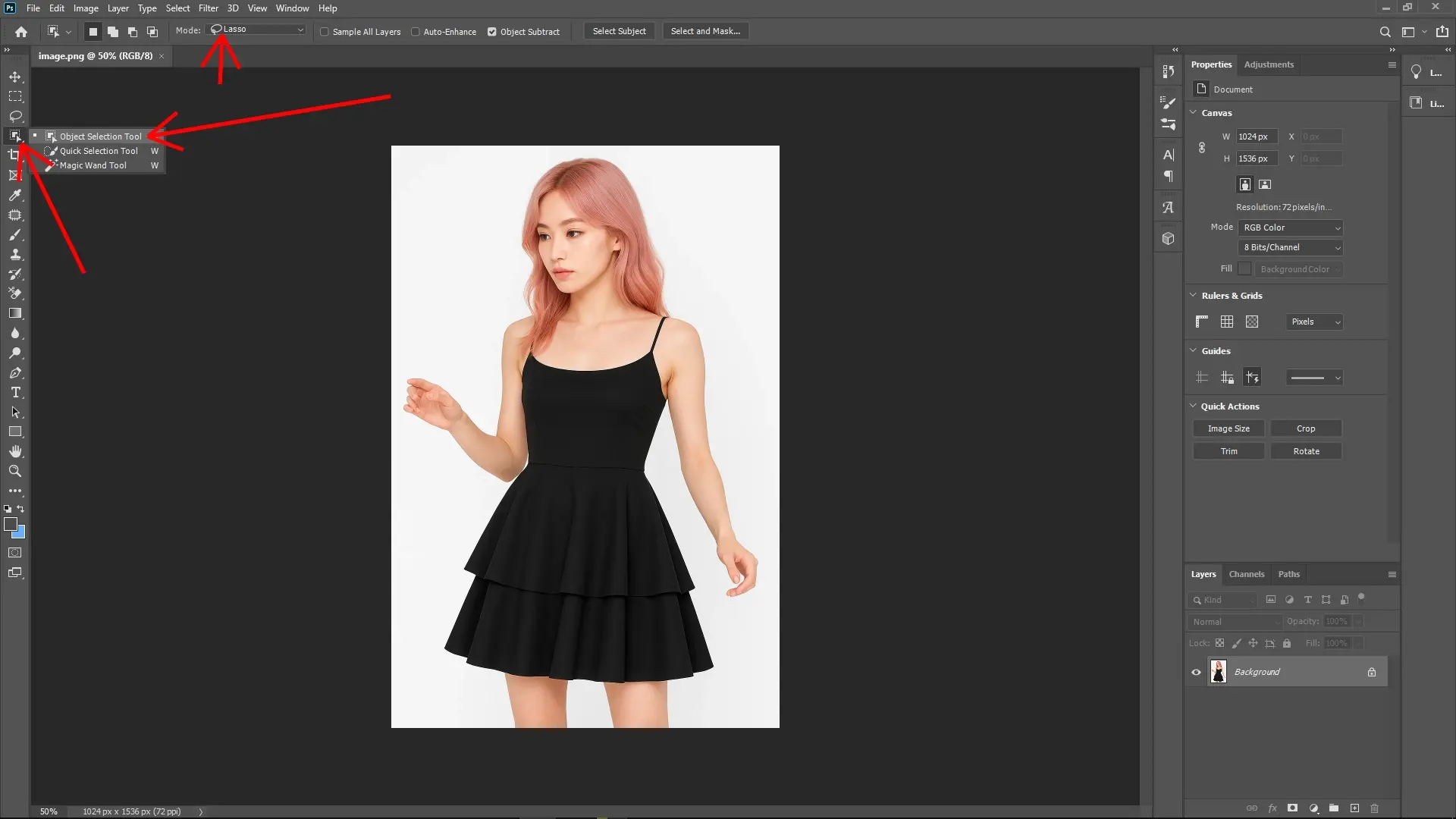
Step 1: Select the Dress
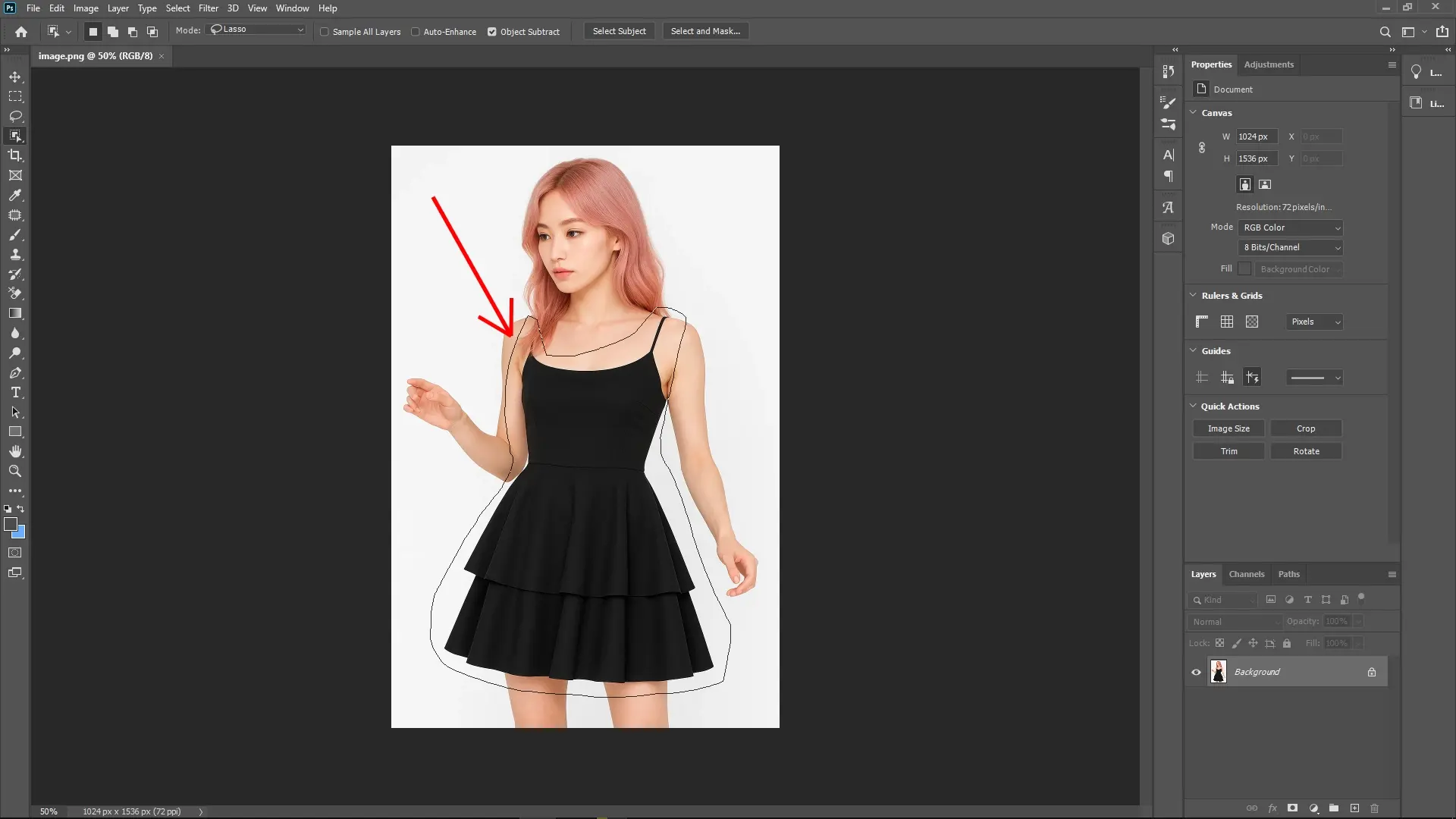
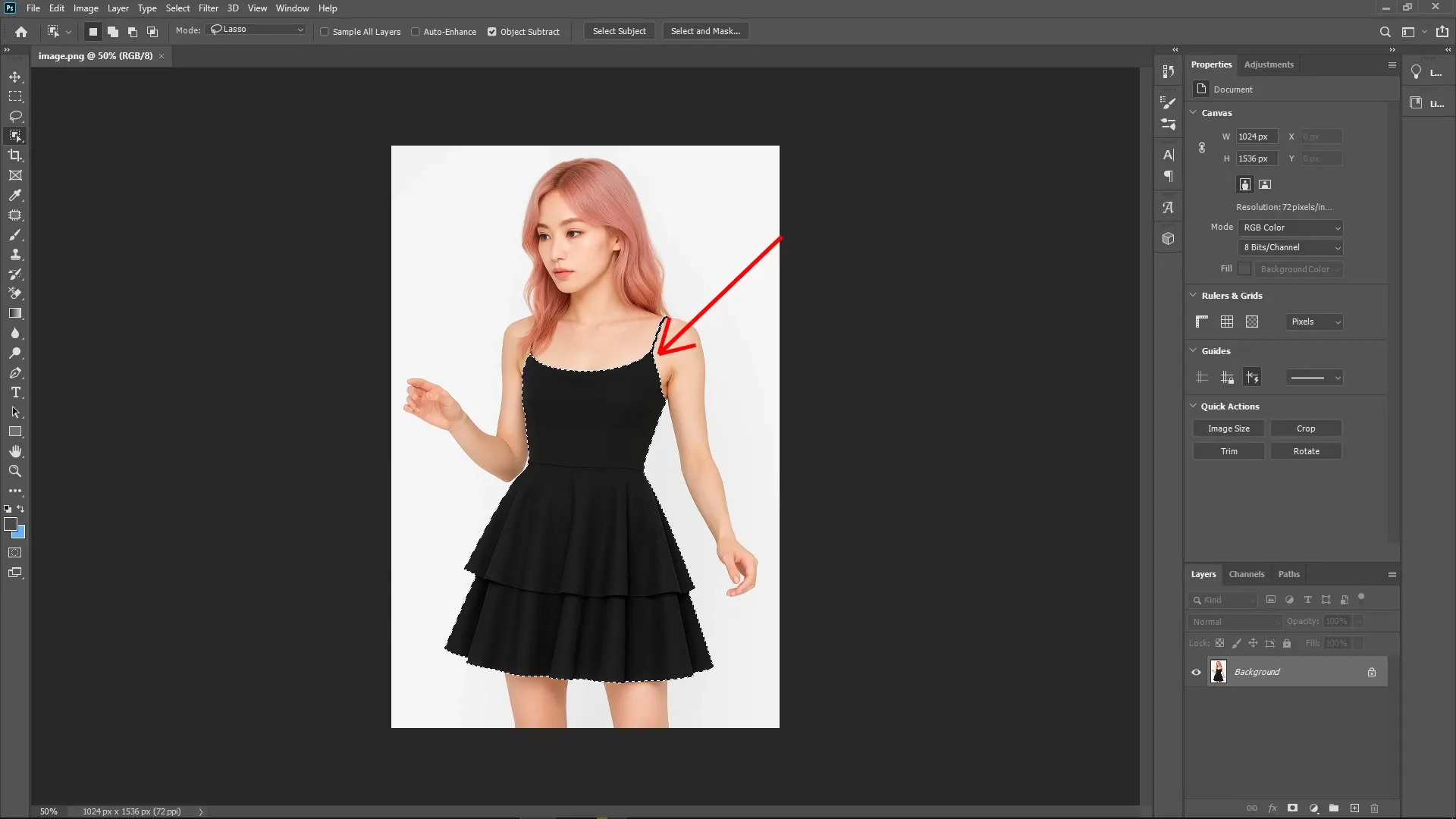
Use the Object Selection Tool from the toolbar to accurately select the dress you want to change the color of. Take your time to ensure the selection is precise around the edges.
Step 2: Duplicate the Selection
With the selection active, press Ctrl + J to duplicate the selection onto a new layer. Repeat this step to create another duplicate, resulting in two duplicate layers of the selected dress.
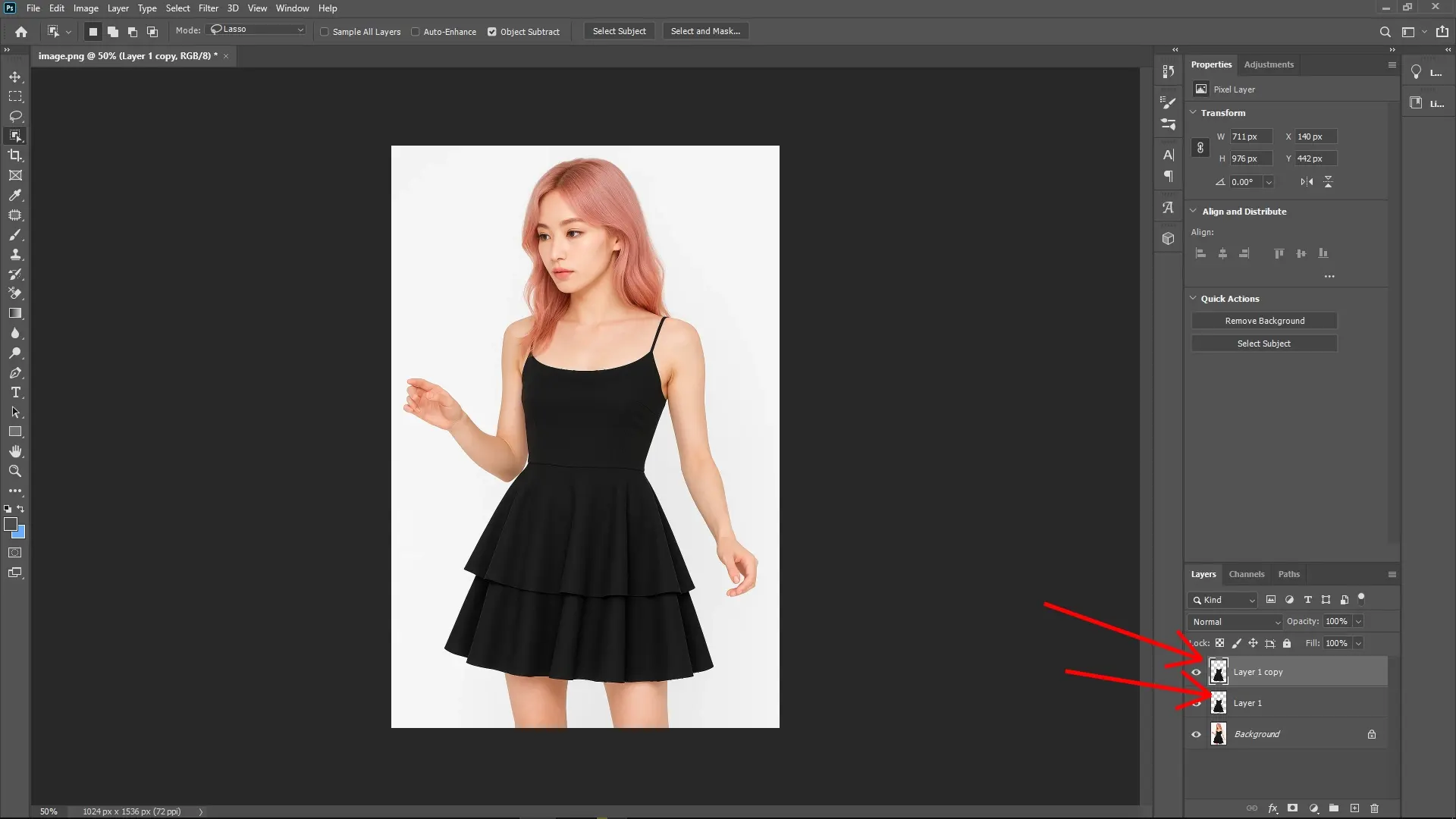
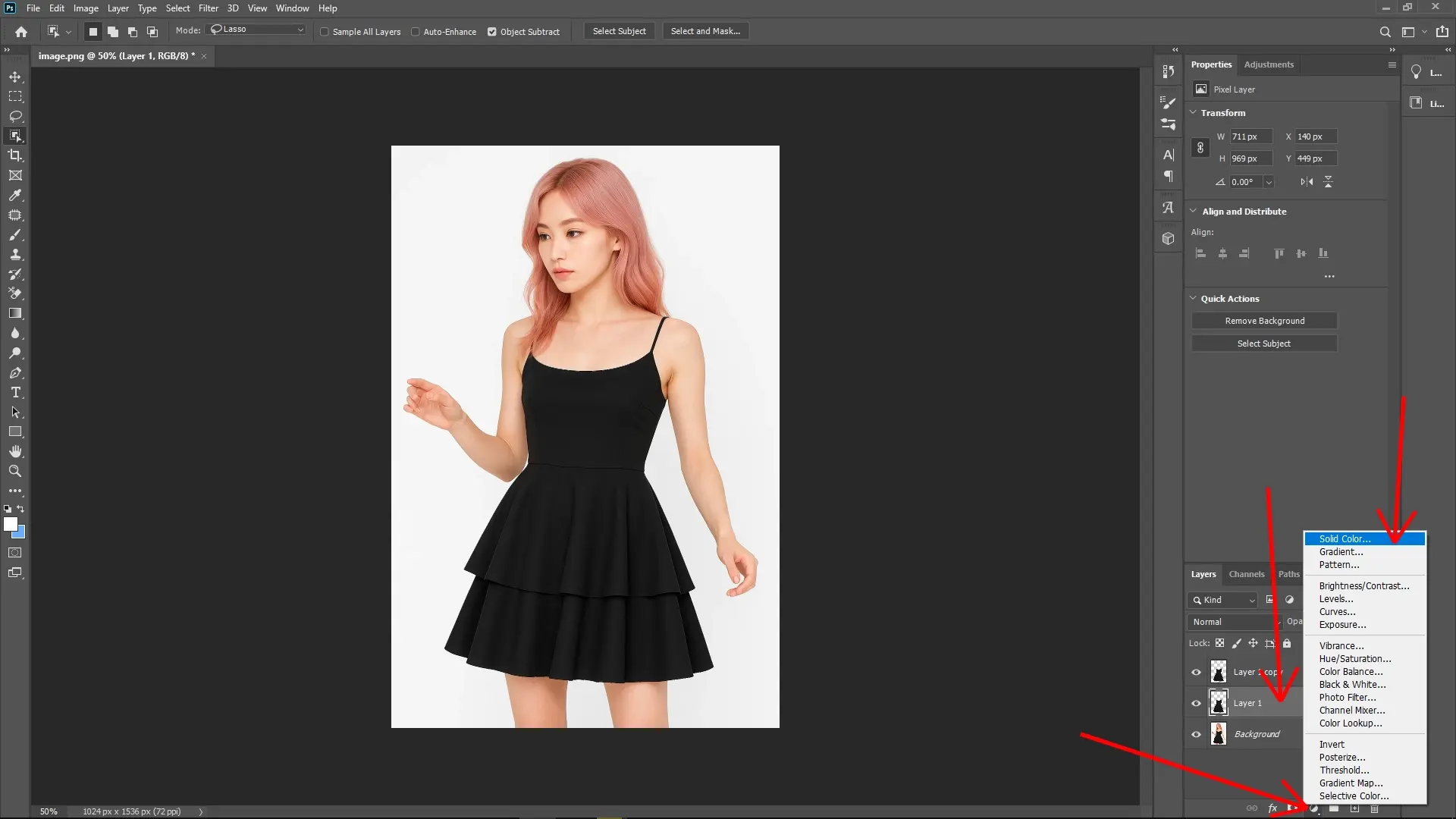
Step 3: Add a Solid Color Layer
Click on the New Fill or Adjustment Layer icon at the bottom of the Layers panel and select Solid Color.
Choose your desired new color for the dress in the Color Picker dialog that appears. You can always change this color later if needed.
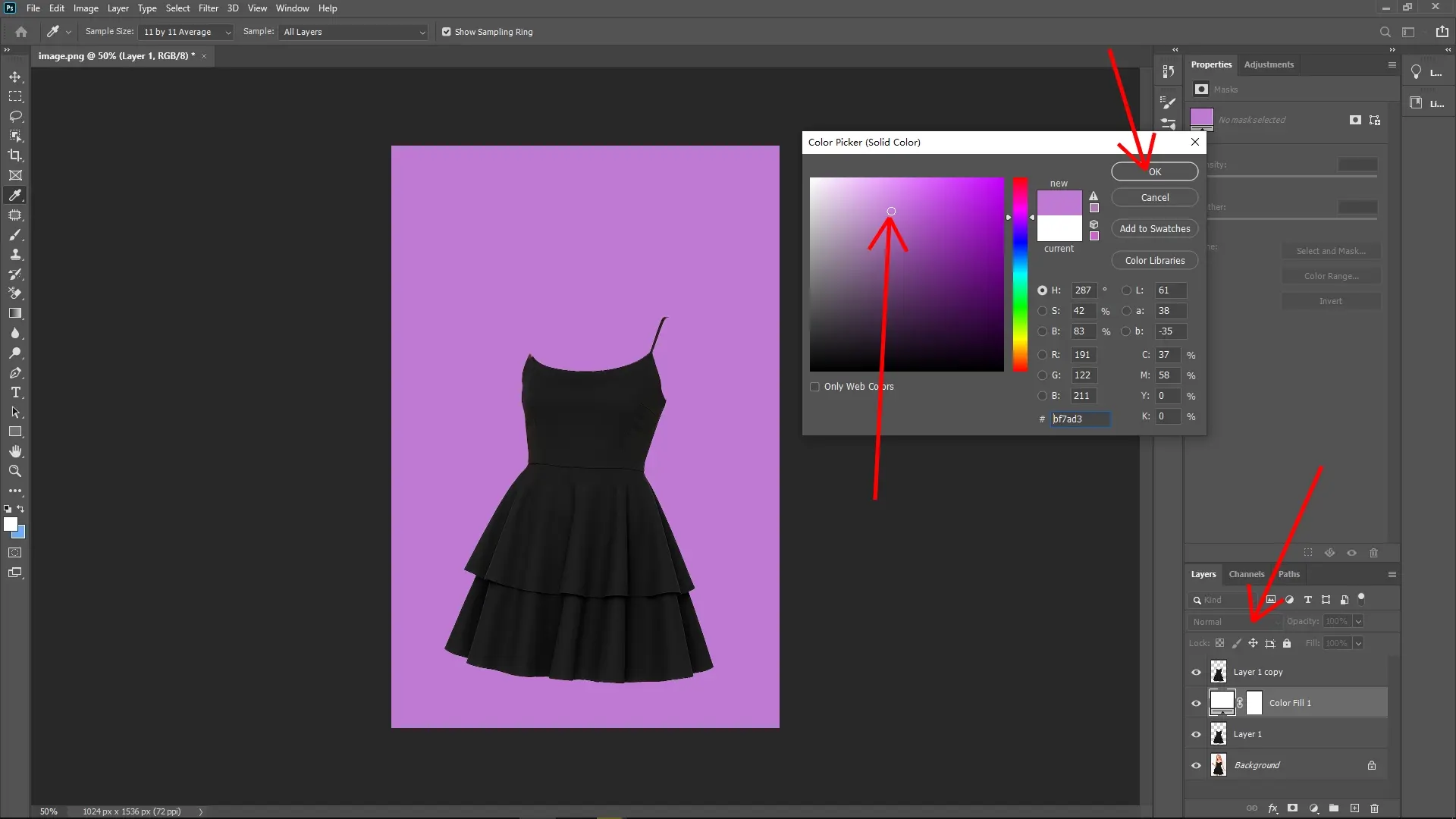
Step 4: Apply Blending Mode and Clipping Mask
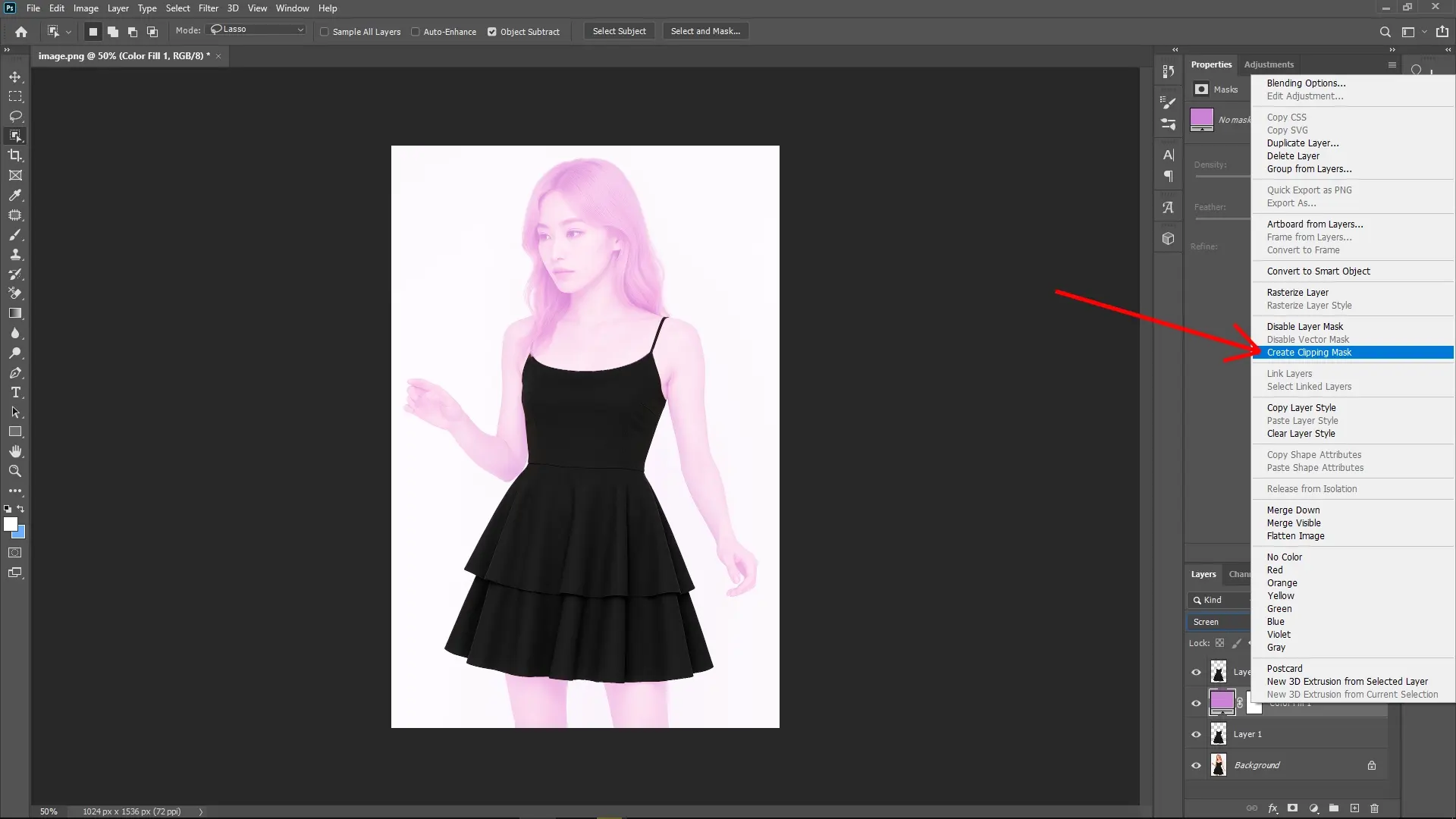
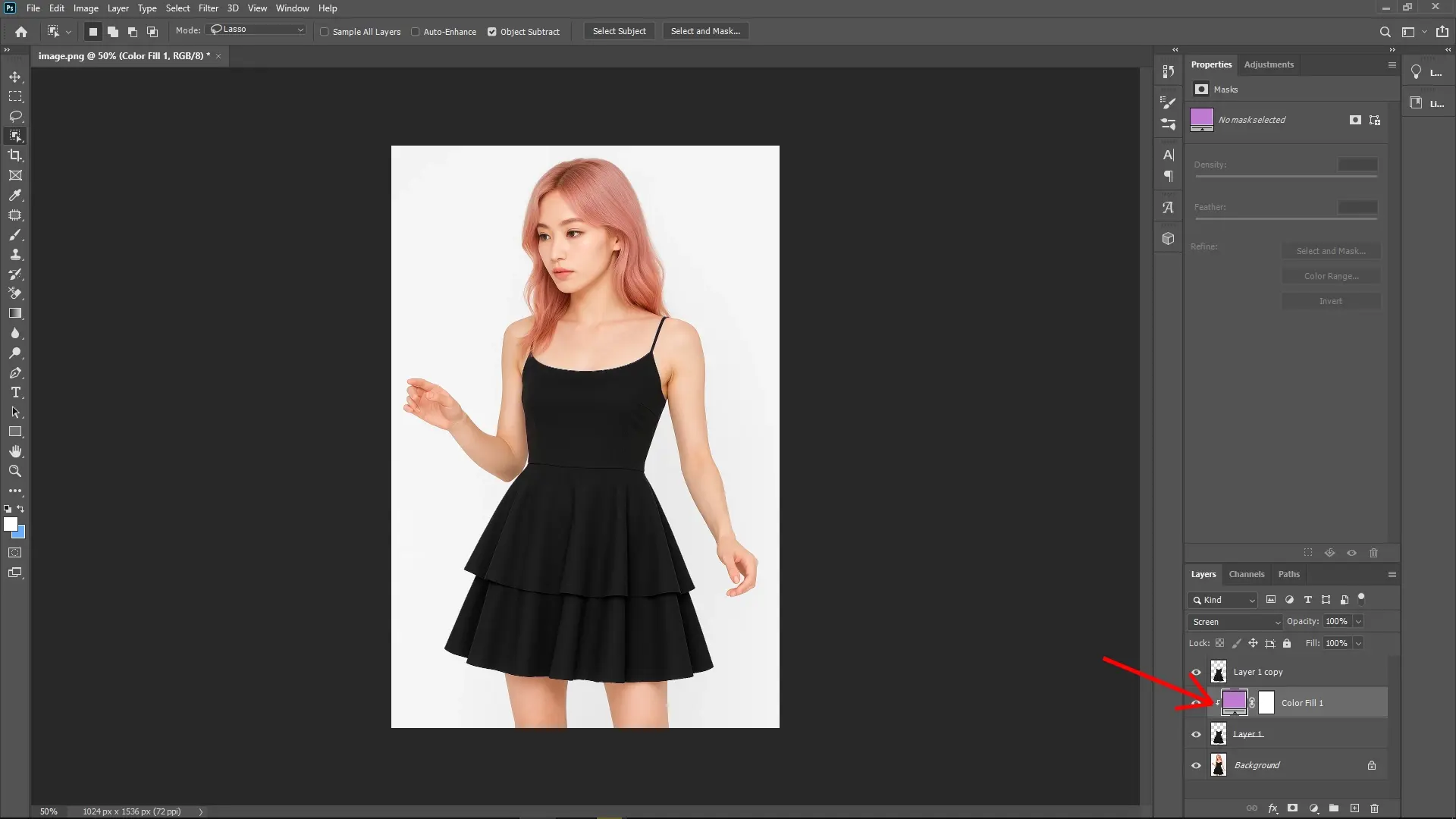
Set the blending mode of the Solid Color layer to Screen. This helps to blend the color smoothly over the dress.
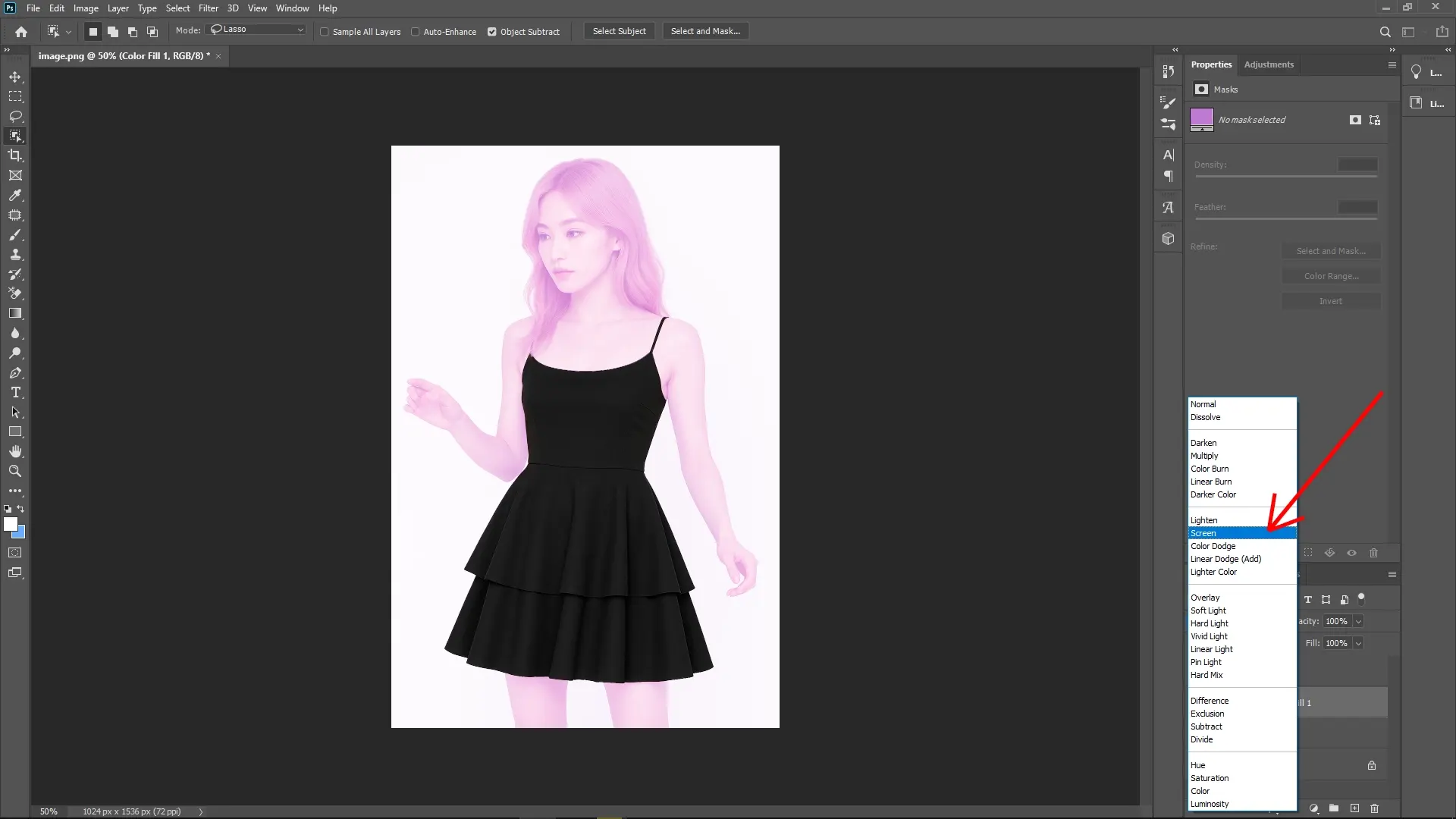
Right-click on the Solid Color layer and choose Create Clipping Mask. This ensures that the color only affects the dress and not the entire image.
Step 5: Adjust Levels on the Top Layer
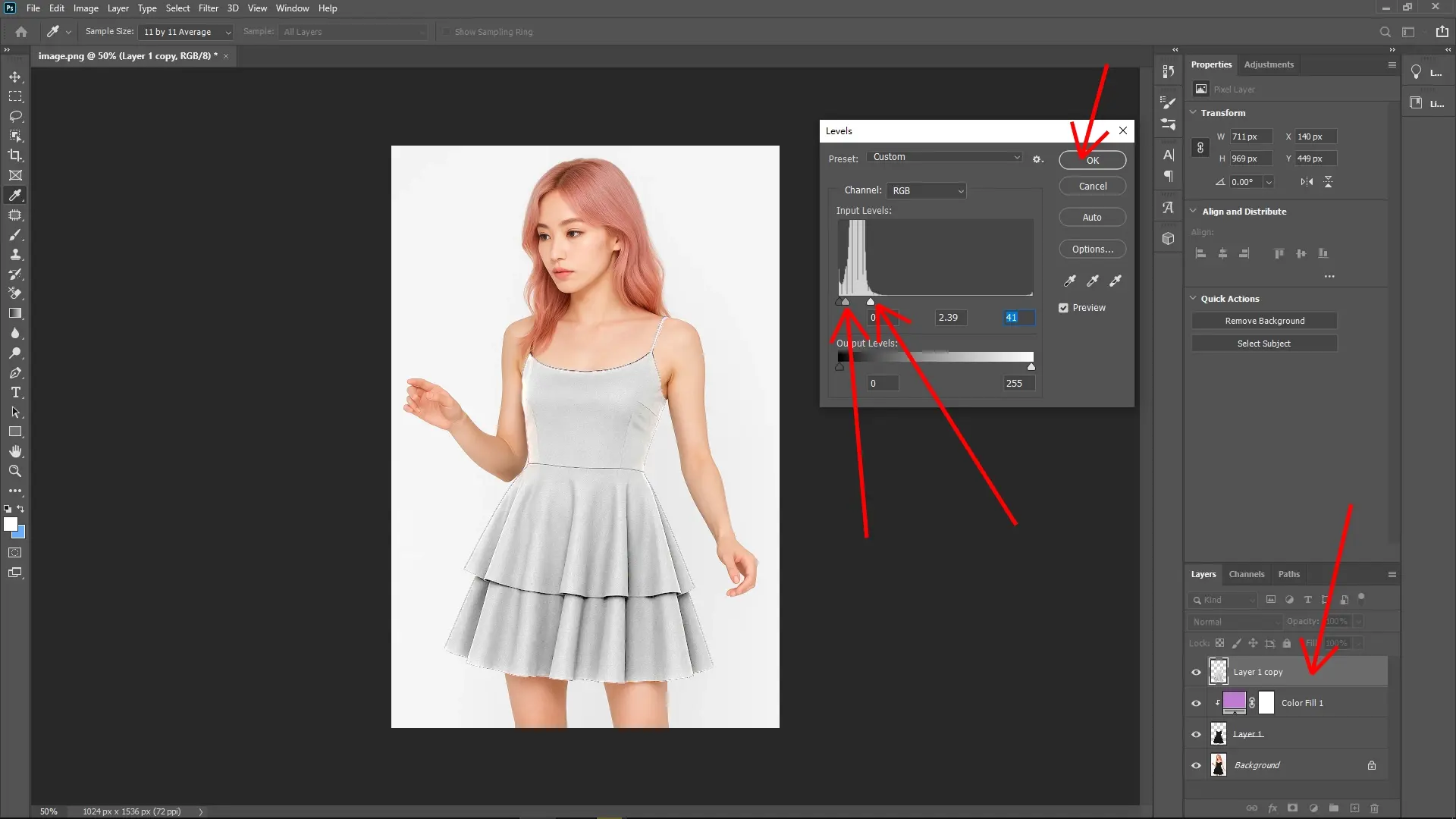
Select the topmost dress layer copy. Press Ctrl + L to open the Levels adjustment dialog.
White Slider: Drag the white slider toward the left to brighten the dress, ensuring details remain visible.
Midtones Slider: Drag the middle slider to the left to adjust the dress brightness and enhance contrast.
Step 6: Final Blending Adjustment
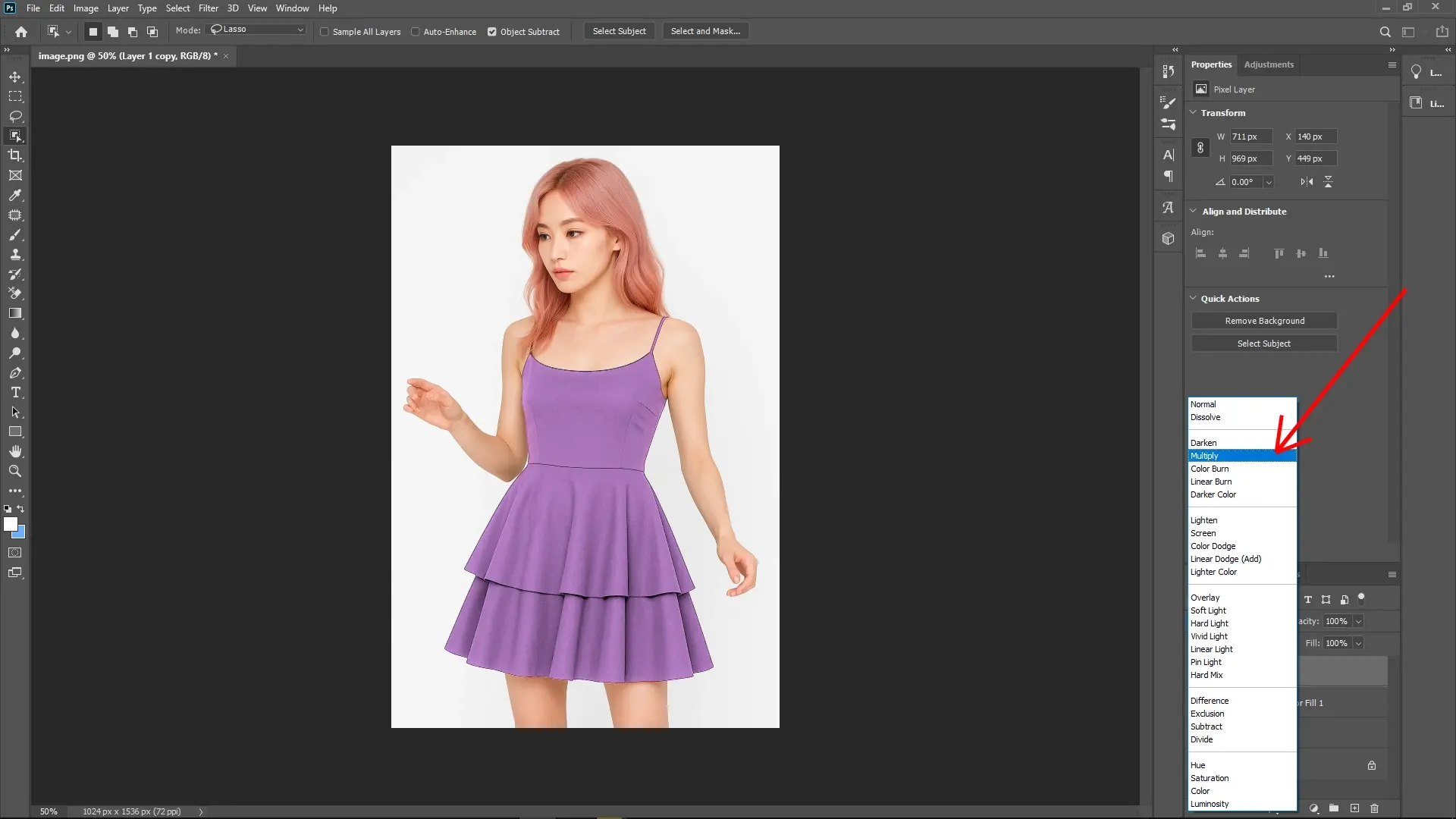
Change the blend mode of this topmost dress layer to Multiply. This should integrate the new color with realistic shadows and highlights, enhancing the overall effect.
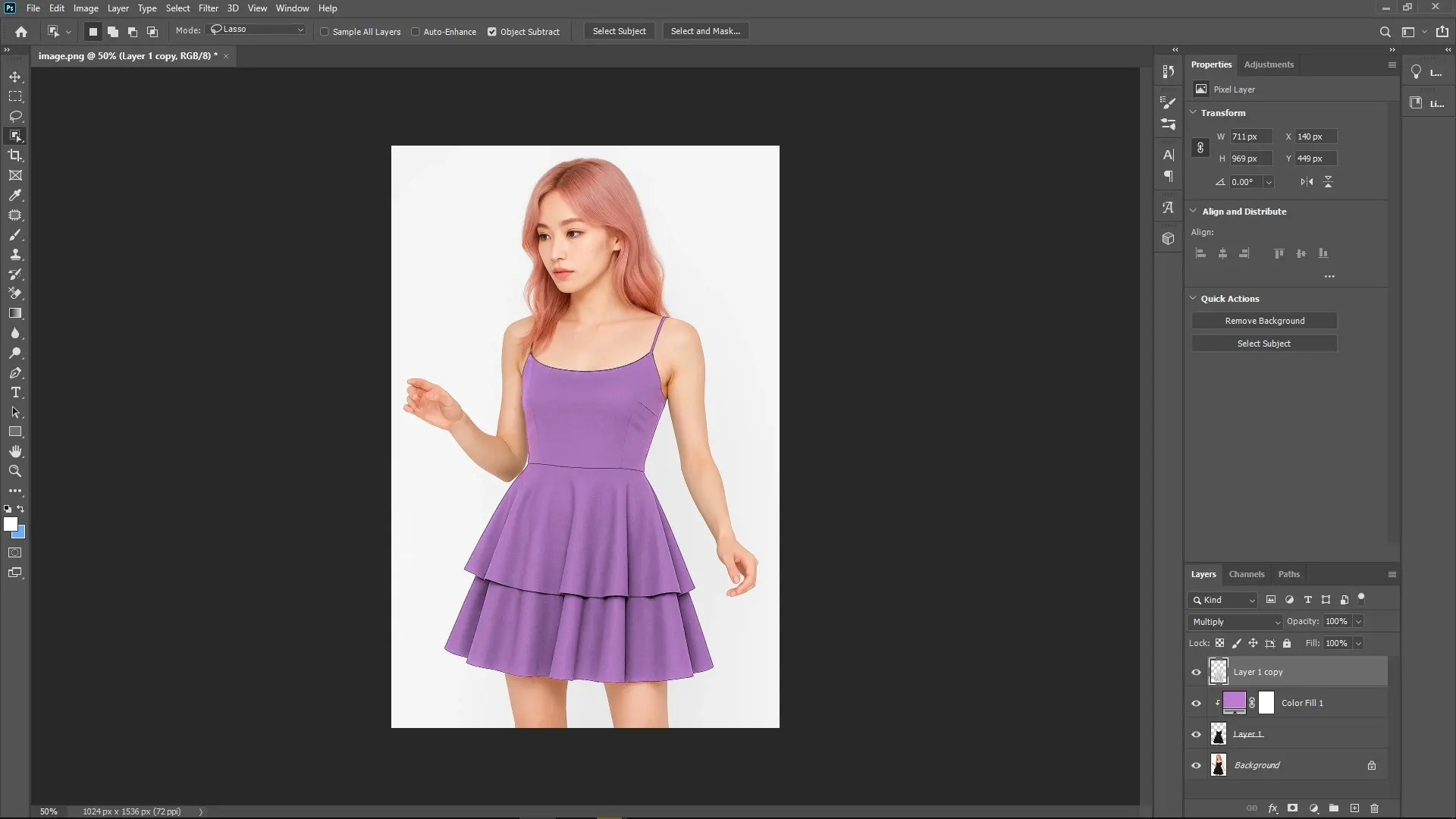
Fine-Tuning
You can return to the Solid Color layer to adjust the hue if the color isn't exactly what you want.
Use other adjustment layers like Hue/Saturation or Curves for further refinement.
Notes:
Ensure the selection of the dress is as precise as possible to avoid color bleeding into other areas.
Experiment with other blending modes like Overlay or Soft Light for different effects, depending on the image and desired outcome.
If necessary, use a soft brush on a layer mask to refine the edges of the dress after the color change to ensure smooth transitions.
Write Reply