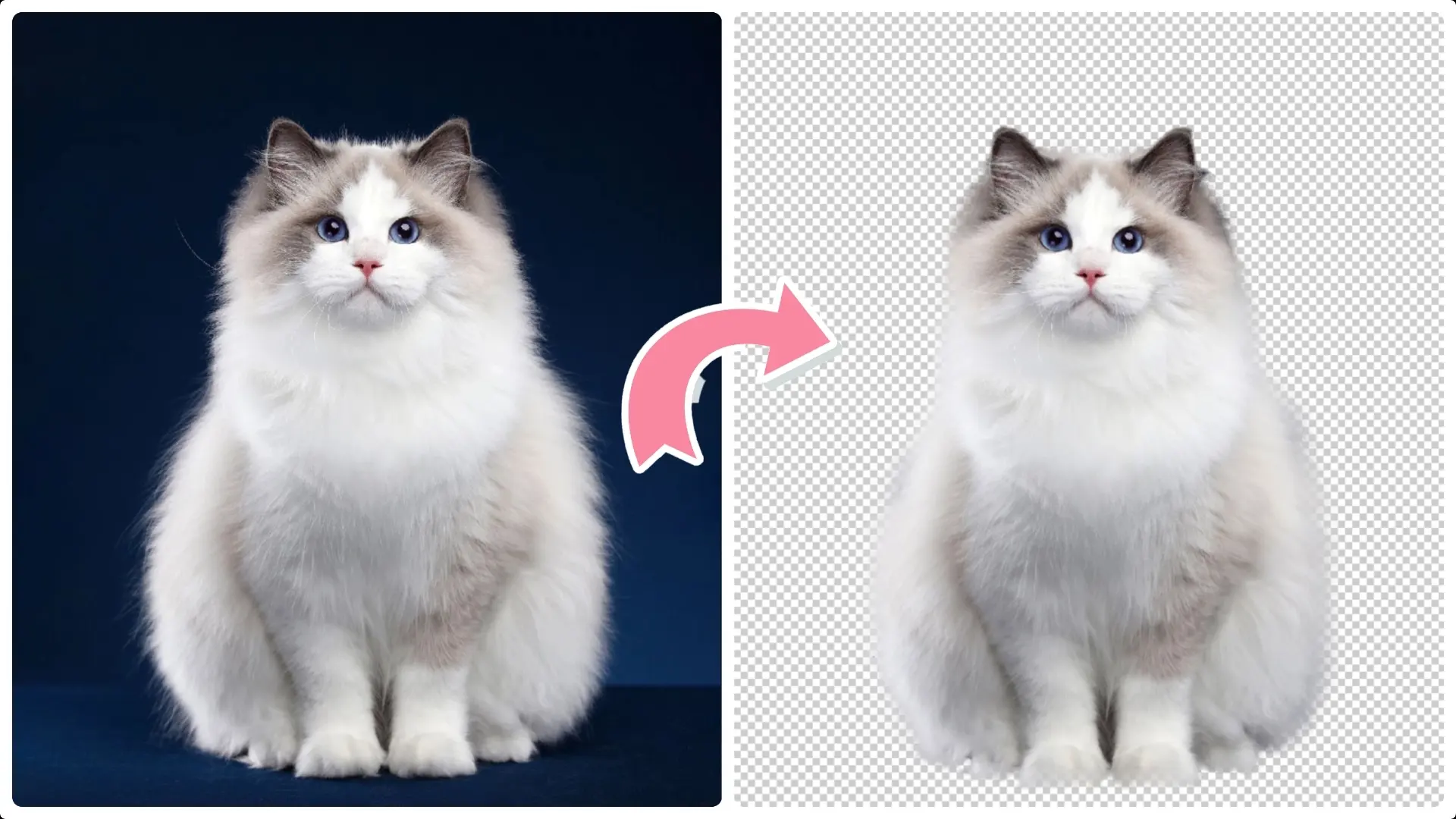
Extract Cats from Photos with Photoshop: A Step-by-Step Guide
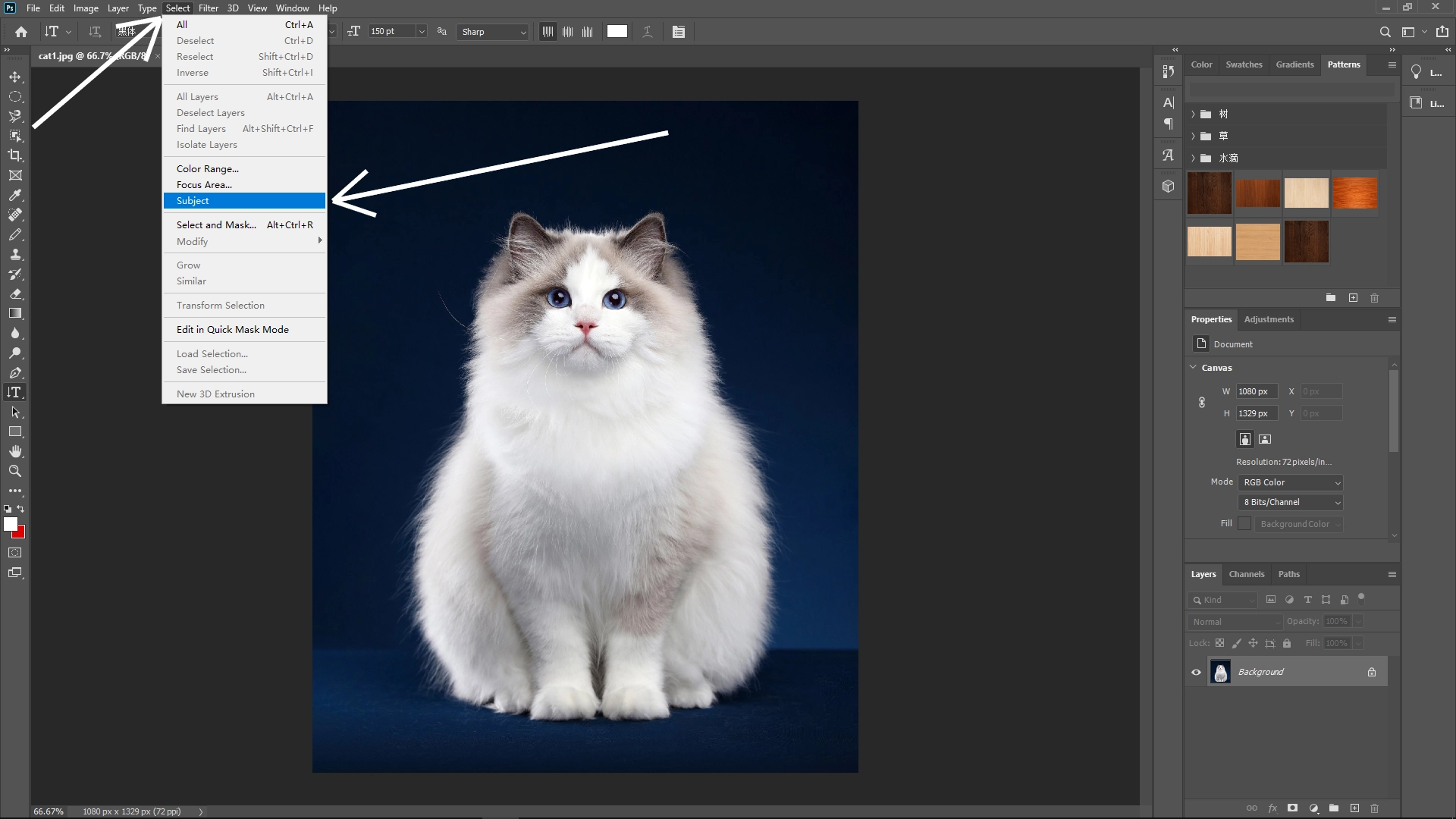
Step 1: Select the Subject
Use the Select > Subject feature to automatically detect and select the cat.
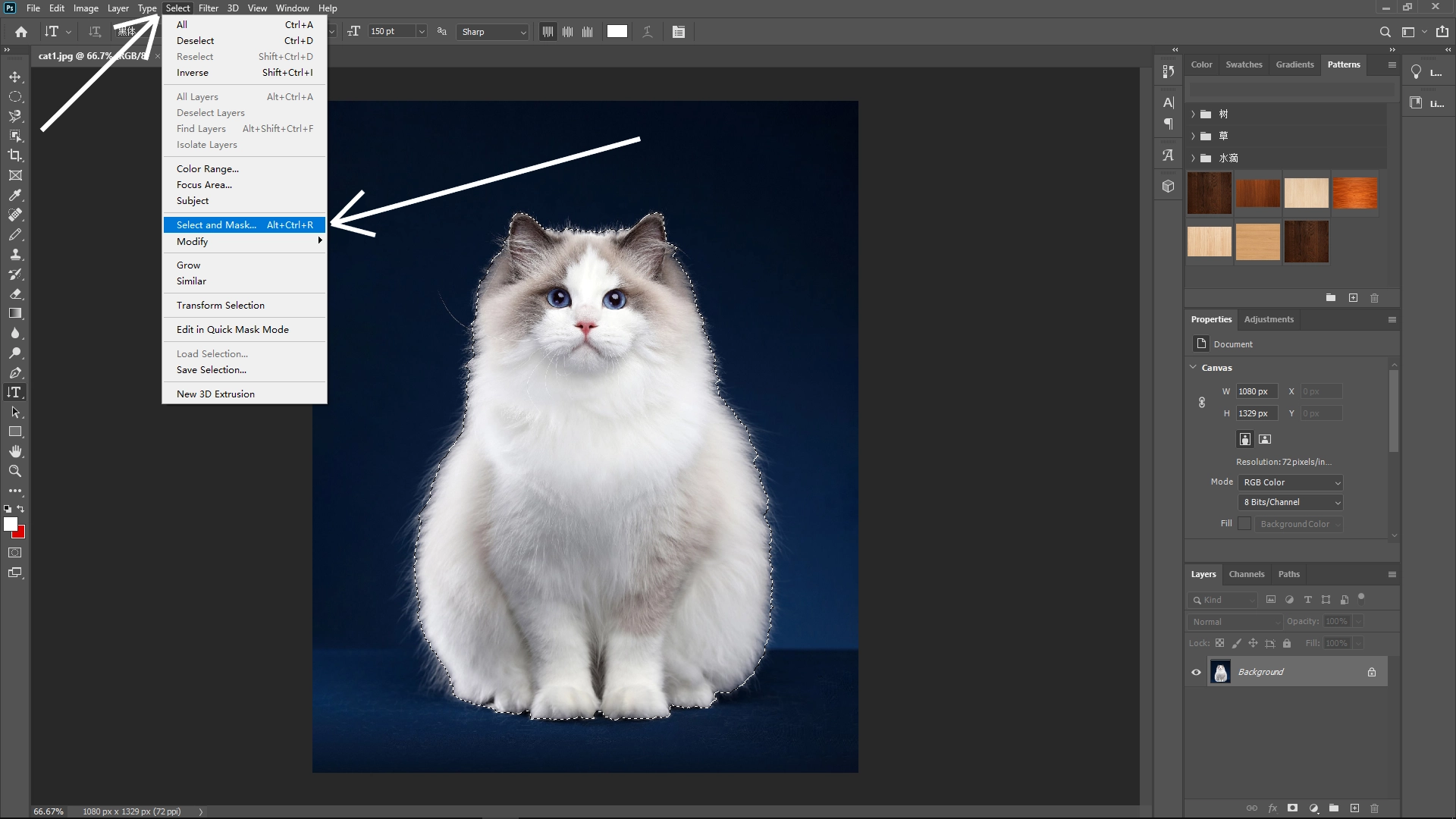
Step 2: Open Select and Mask Workspace
Click on Select > Select and Mask (found in the Options bar or via the Select menu) to refine your selection with precise control.
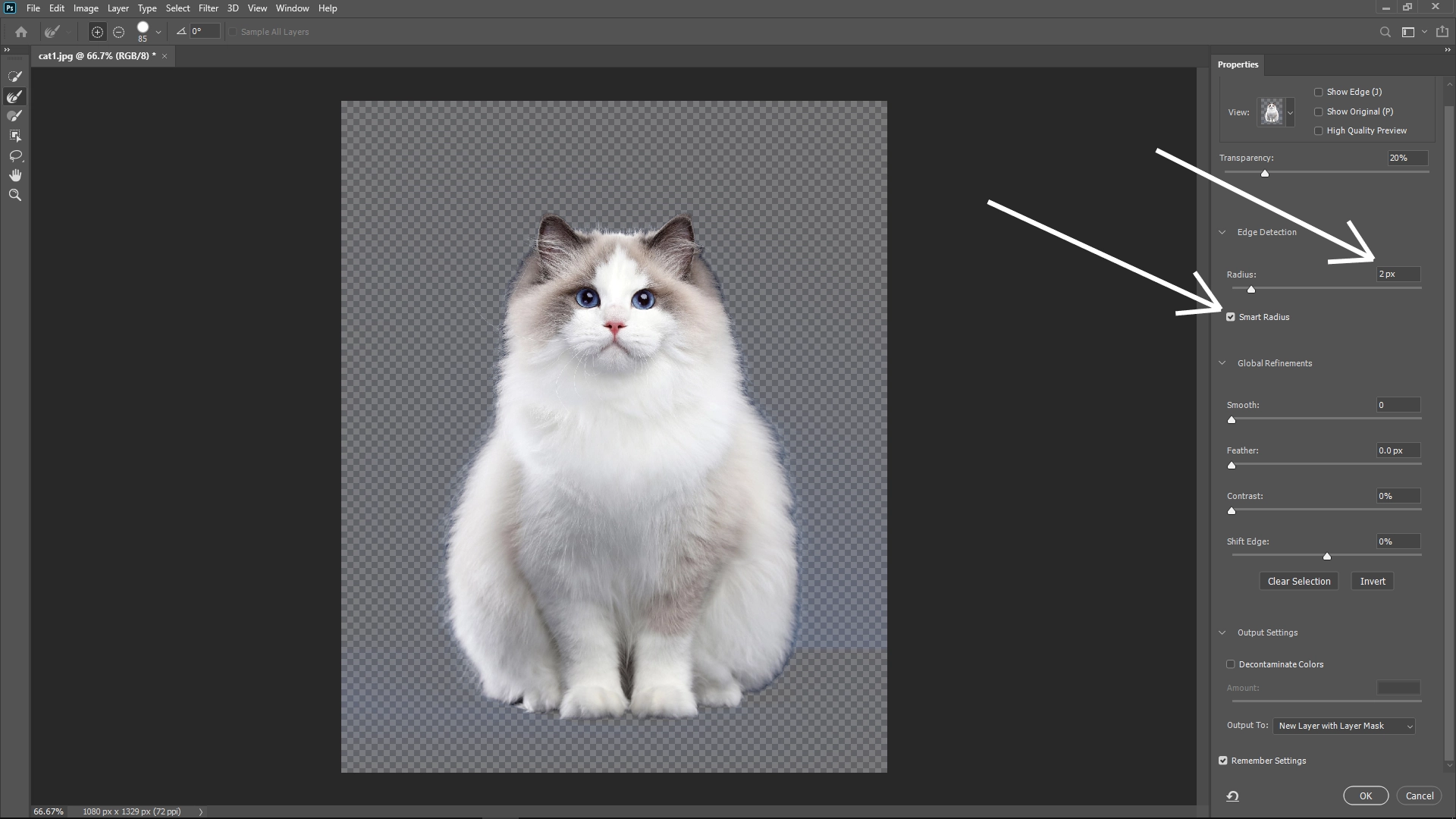
Step 3: Adjust Edge Detection
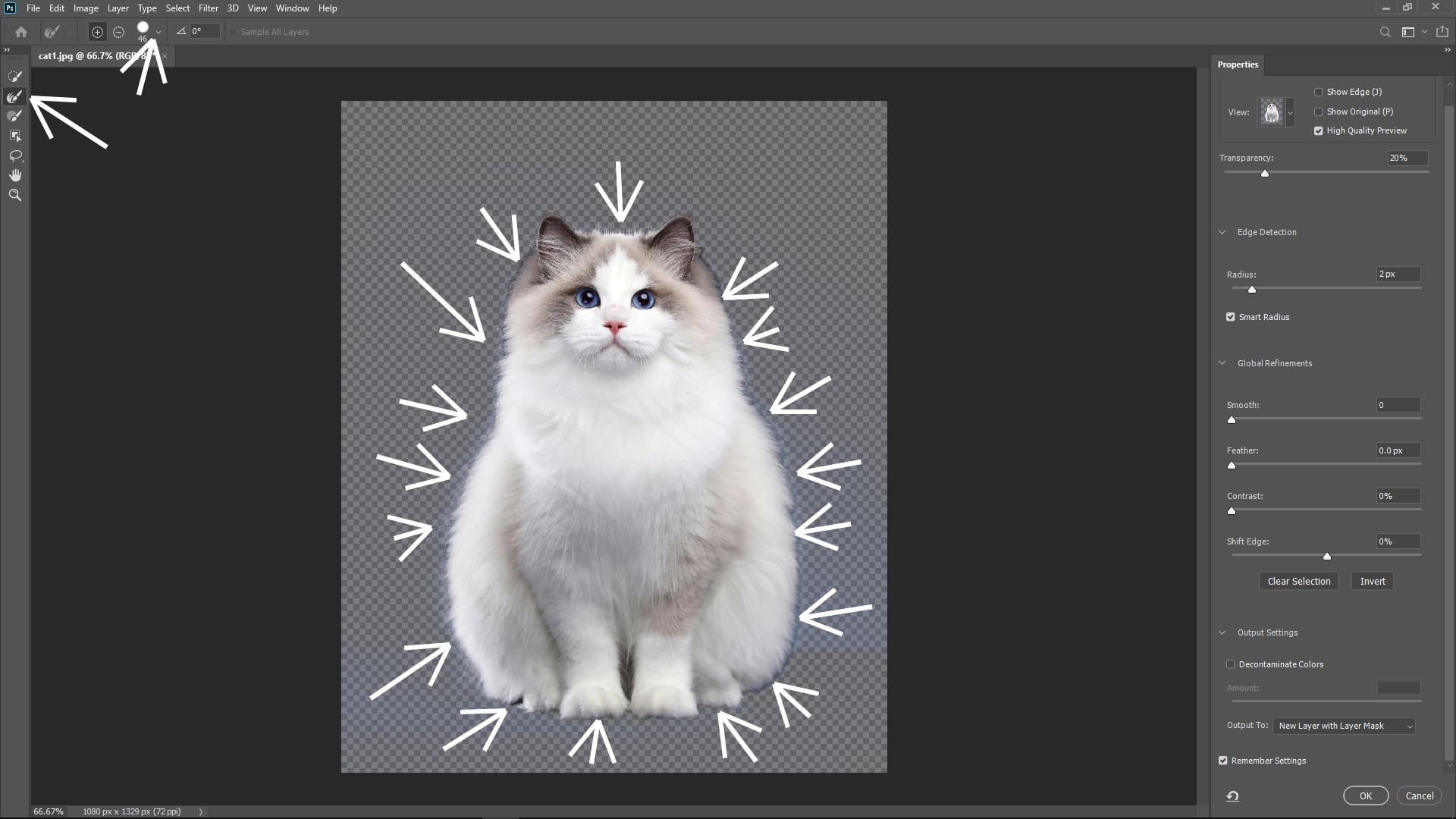
In the Select and Mask panel, enable Smart Radius under Edge Detection and adjust the radius slider. This helps Photoshop better identify soft edges like fur.
Step 4: Refine Edges with Brush Tools:
Use the Refine Edge Brush Tool to paint along tricky edges (such as fur) to ensure the selection captures fine details cleanly. You can also use the regular Brush Tool here to add or subtract from the selection manually.
Step 5: Decontaminate Colors
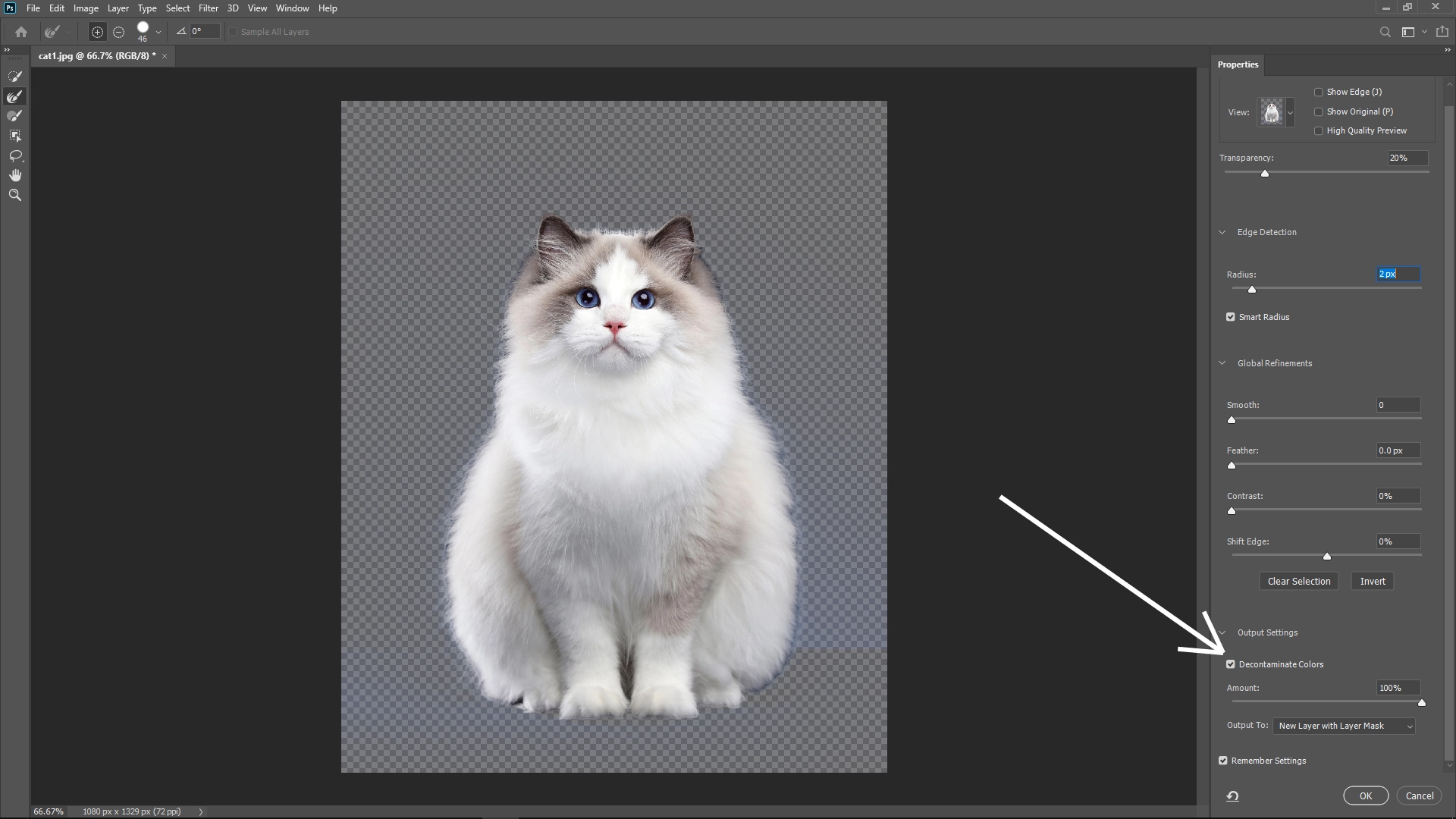
Enable the Decontaminate Colors option to remove color fringing or halos around the object edges caused by the background. Adjust the slider to control the intensity of the effect.
Step 6: Output the Selection
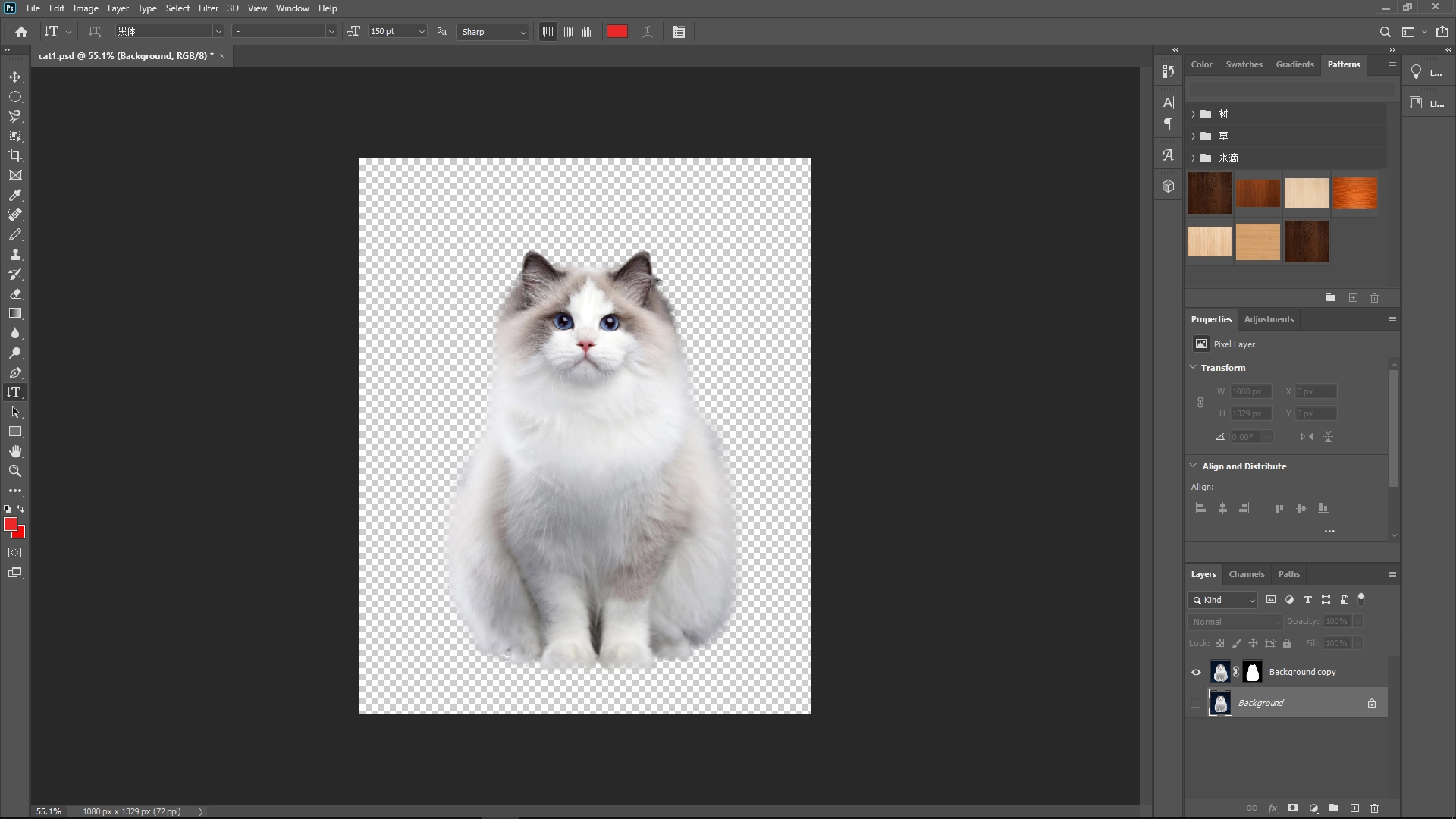
Finally, set the output to a New Layer with Layer Mask for non-destructive editing, then click OK to apply.
Write Reply