How to Create a 'Pop-Out' Screen Effect in Photoshop: Out Of Bounds Effect Step-by-Step Guide
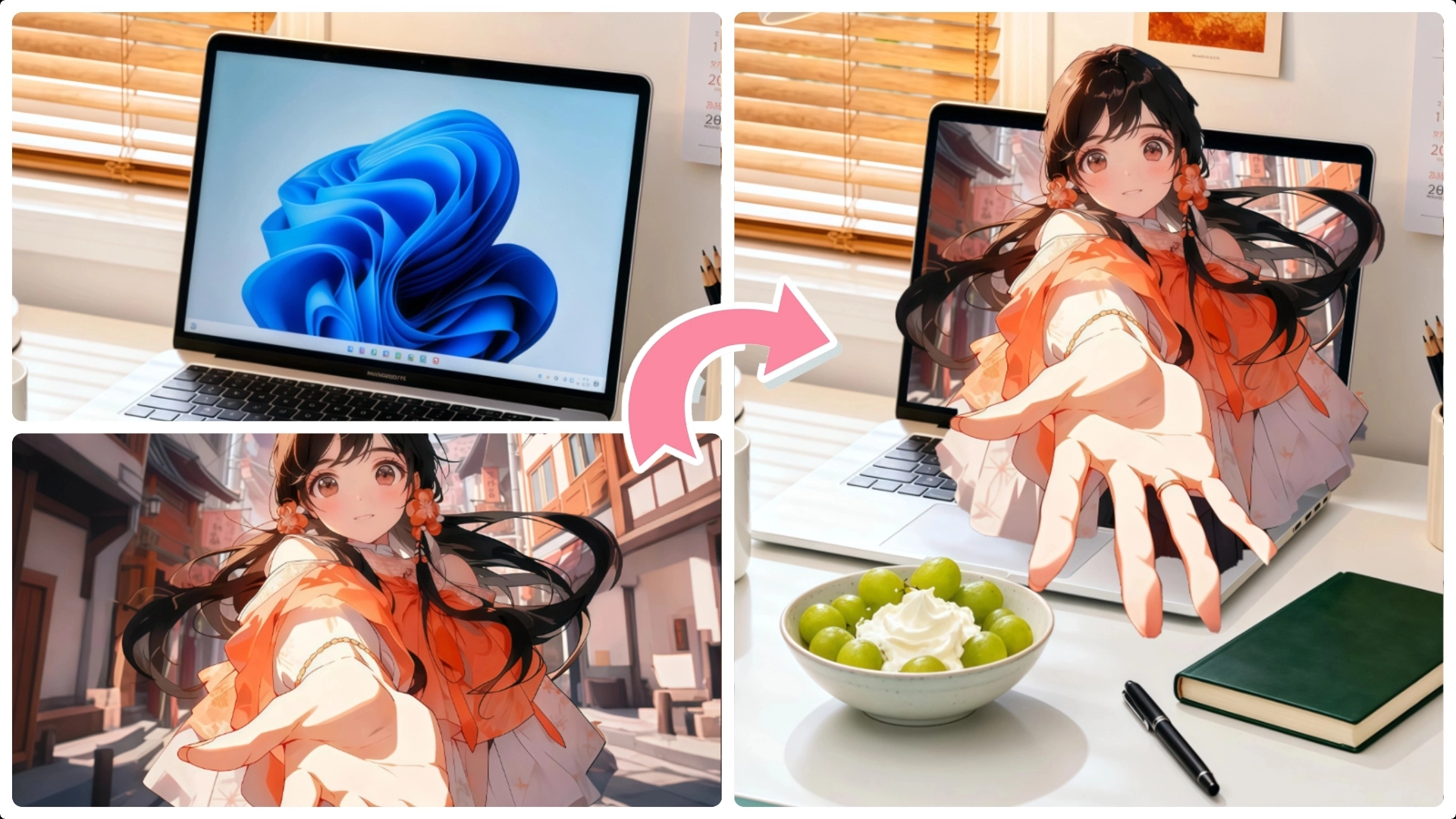
Creating a 'pop-out' or 'out of bounds' effect in Photoshop can add a dynamic and eye-catching element to your images. Follow these detailed steps to bring your pictures to life.
Step 1: Select the Screen Area
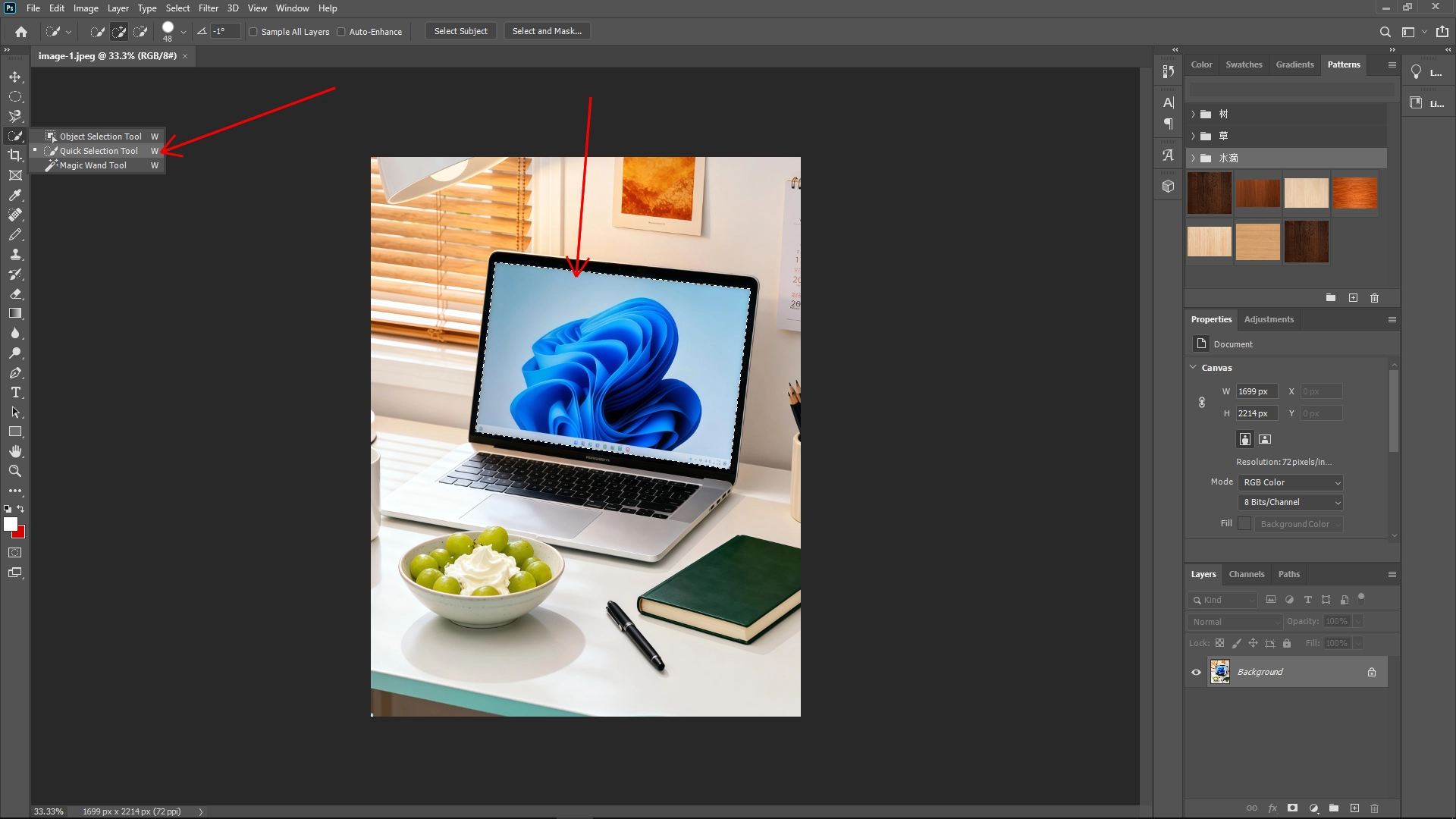
Begin by opening Image 1 in Photoshop. Use the Quick Selection Tool (W) to carefully select the screen area where you want the pop-out effect to occur. Adjust the size of the tool as needed for precision.
Then, press Ctrl + J (Cmd + J on Mac) to duplicate the selected area onto a new layer.
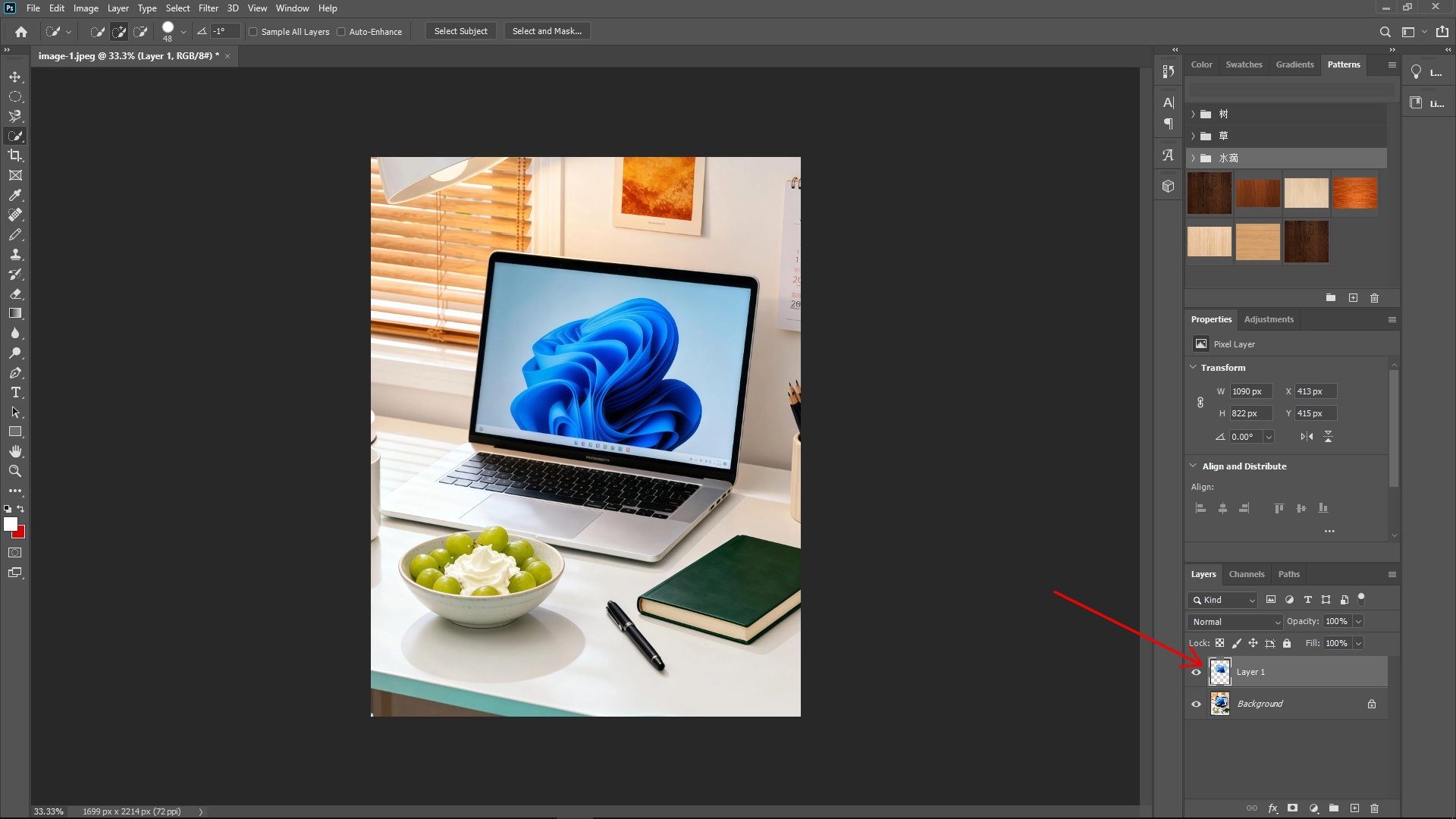
This new layer will act as a frame for the pop-out effect.
Step 2: Import and Select the Subject
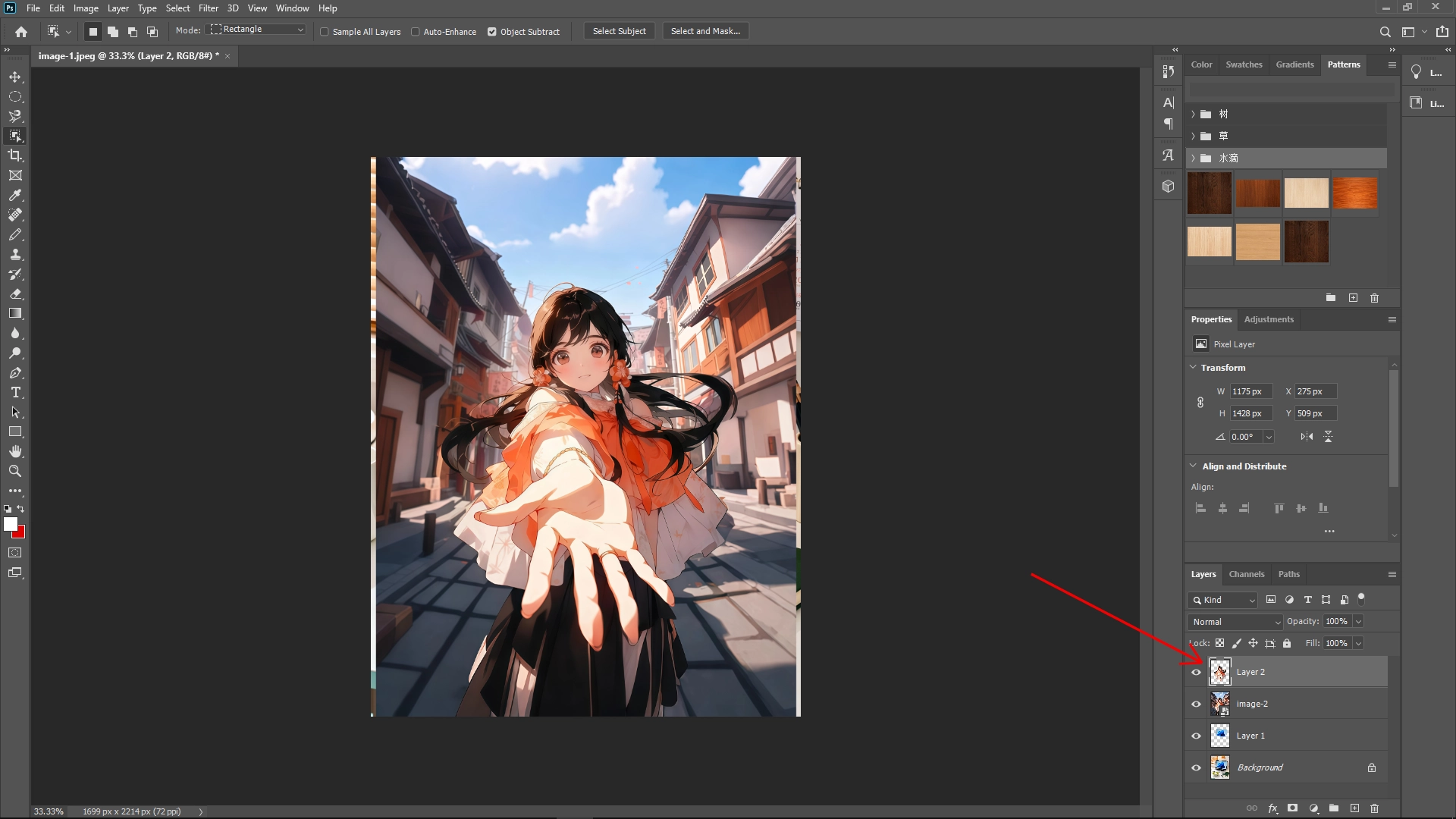
Drag in the subject image 2. Use the Object Selection Tool (W) to outline the person or object you want to pop out. If the selection isn't perfect, hold the Shift key to add to the selection or Alt (Option on Mac) to subtract from it.
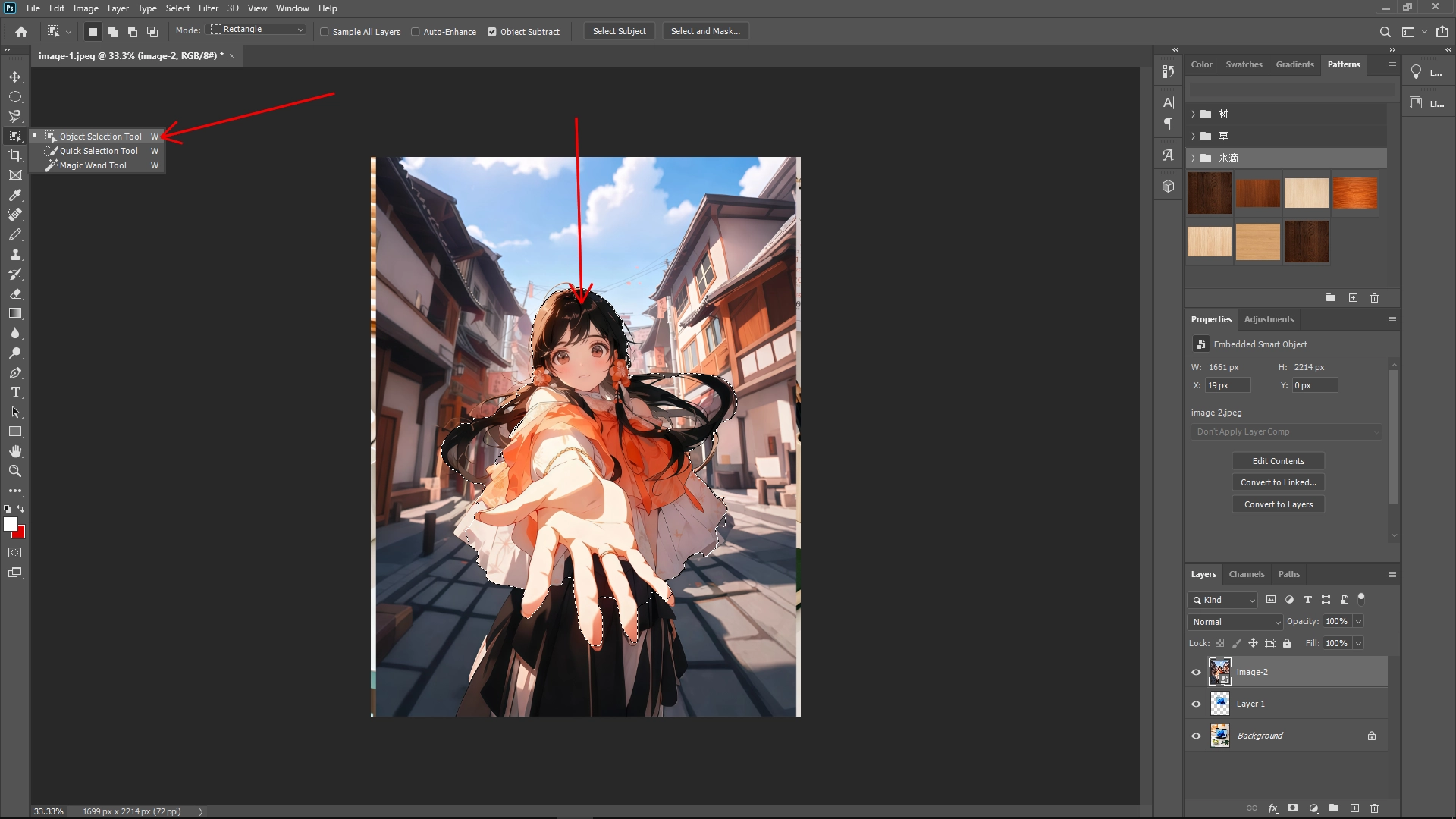
After making your selection, press Ctrl + J (Cmd + J on Mac) to duplicate the subject onto a new layer. This helps isolate the selected subject for the effect.
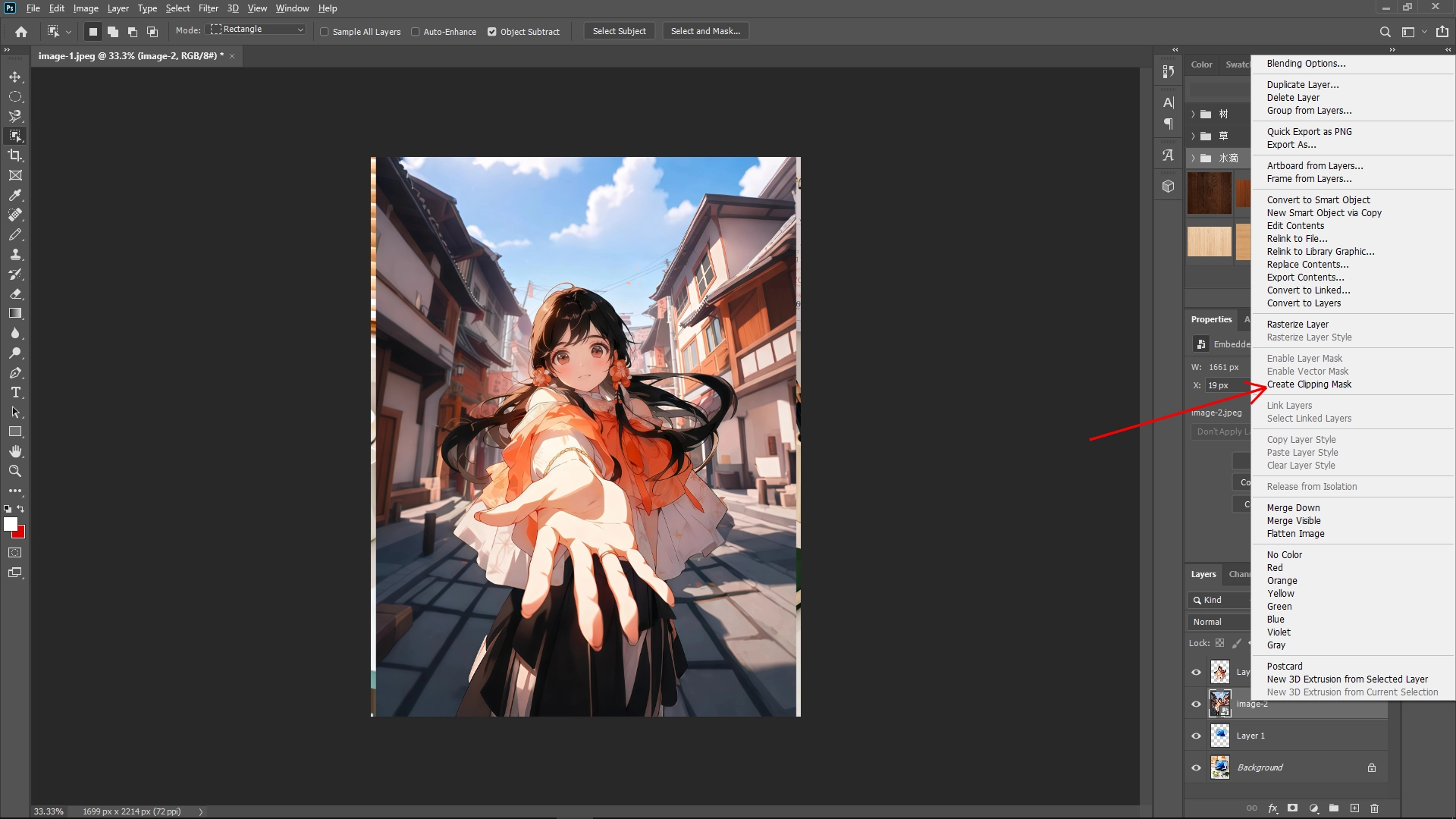
Step 3: Apply Clipping Mask
In the Layers panel, Right-click the Image 2 and select Create Clipping Mask . This confines the subject to the frame of the duplicated screen area, giving the impression it is emerging from the screen.
Step 4: Adjust and Position
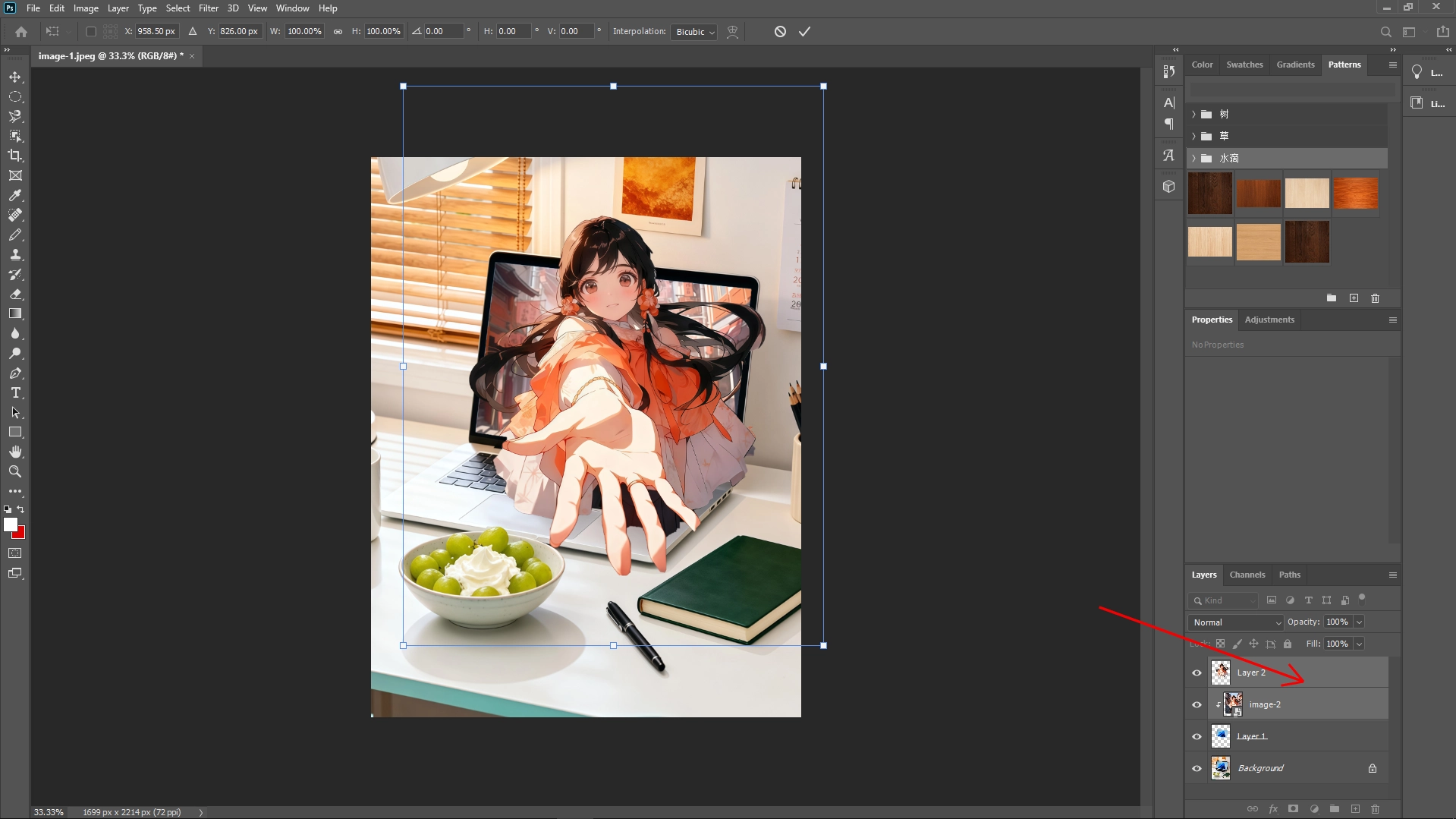
Select both the subject image 2 and the subject layer 2. Press Ctrl + T (Cmd + T on Mac) to transform the selection and adjust the position to create a realistic and balanced 'pop-out' effect. Ensure the subject overlaps the screen edges naturally to enhance the three-dimensional look.
Final Touches
To enhance the realism, consider adding shadows beneath the "popping" elements using the Drop Shadowlayer style. Fine-tune the shadow's distance, spread, and opacity until you achieve a natural look. Additionally, use the Blur Tool to subtly soften the edges of the popped-out object if necessary.
Conclusion
By following these steps, you can create a captivating out-of-bounds effect that adds a dynamic element to your images. Experiment with different subjects and scenes to fully explore the creative possibilities of this technique.
Write Reply