How to Extract Cluttered Objects from a Complex Background in Photoshop
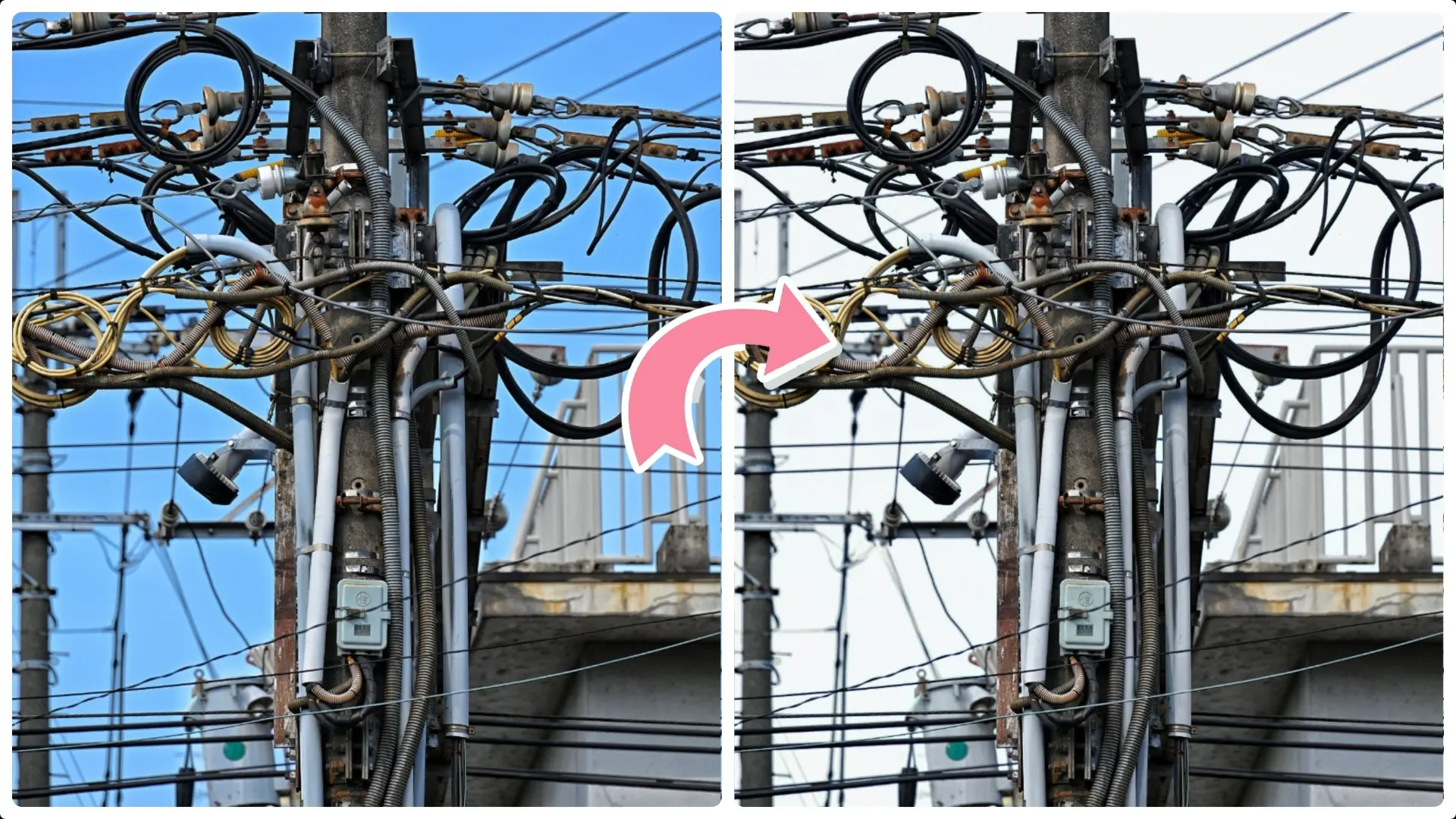
When you have an image with cluttered objects—like wires or branches—that you want to isolate from a busy background such as the sky, the Background Eraser Tool can be very effective.
Follow these detailed steps to cleanly remove the background while preserving the foreground objects:
Step 1: Set Appropriate Foreground and Background Colors
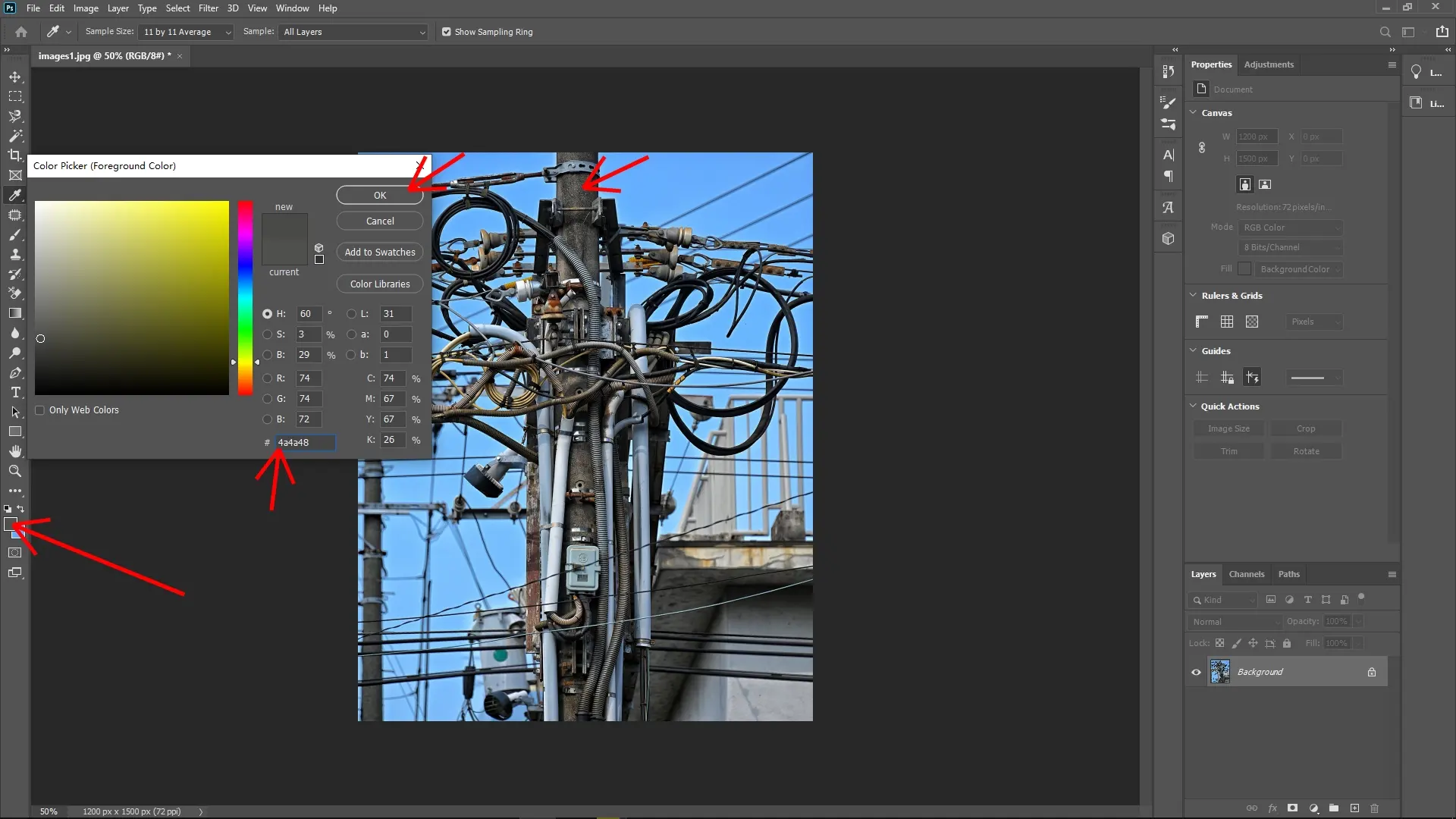
Begin by setting your foreground color to a tone close to the cluttered objects (e.g., the color of the wires or branches). This helps the tool recognize and protect these objects during erasure.
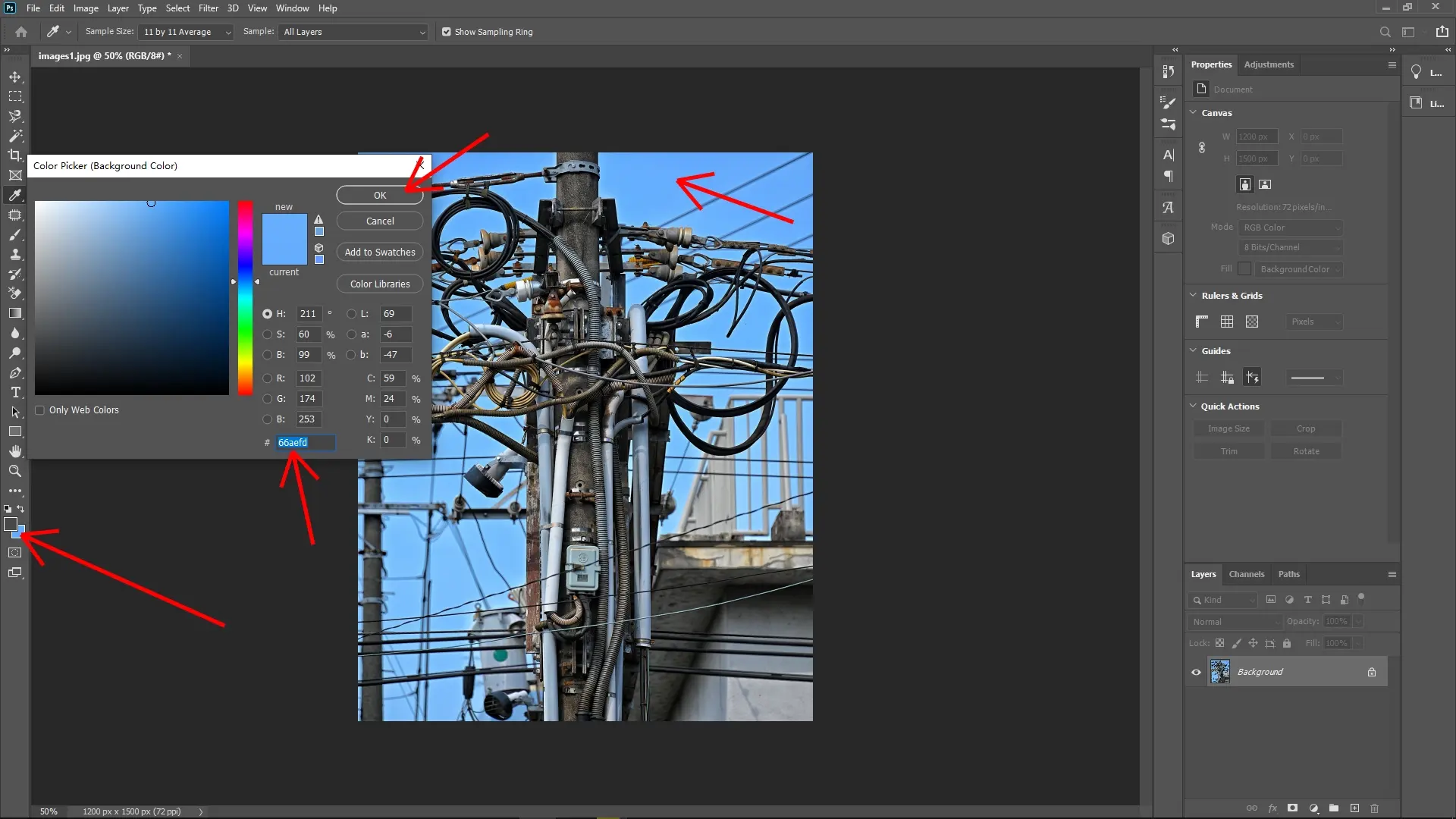
Then, set your background color to match the sky or the background area you want to remove. These colors act as references for the Background Eraser Tool.
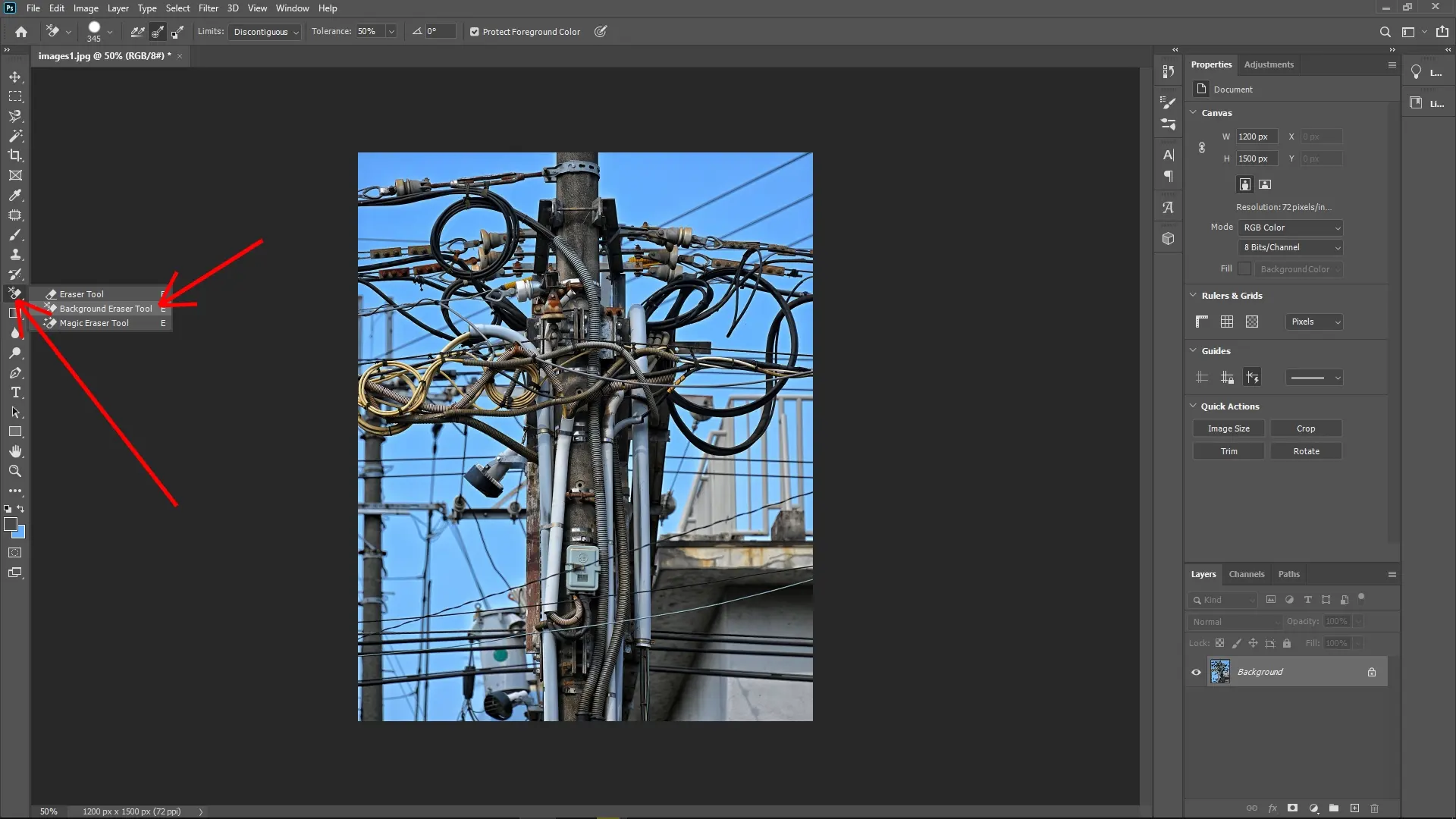
Step 2: Select the Background Eraser Tool
In the Tools panel, select the Background Eraser Tool (it may be nested under the regular Eraser Tool; you can cycle through with Shift + E). This tool erases pixels based on color sampling, which is ideal for separating foreground from background in complex scenes.
Step 3: Configure the Background Eraser Tool Settings
Sampling: Choose “Once”. This means the tool samples the color only once at the initial click and erases pixels similar to that sampled color as you drag, rather than continuously sampling colors under the cursor.
Limits: Set to “Discontiguous”. This allows the tool to erase pixels that match the sampled background color even if they are not directly adjacent to the cursor's current position, which helps when the background is scattered or has gaps.
Tolerance: Adjust the tolerance to around 50%. This defines how similar a pixel’s color must be to the sampled color to be erased. Higher tolerance increases the range of colors erased but risks removing parts of the foreground. Fine-tune this value if necessary.
Protect Foreground Color: Enable this option to prevent pixels matching the foreground color from being erased, protecting your subject even if colors are close.
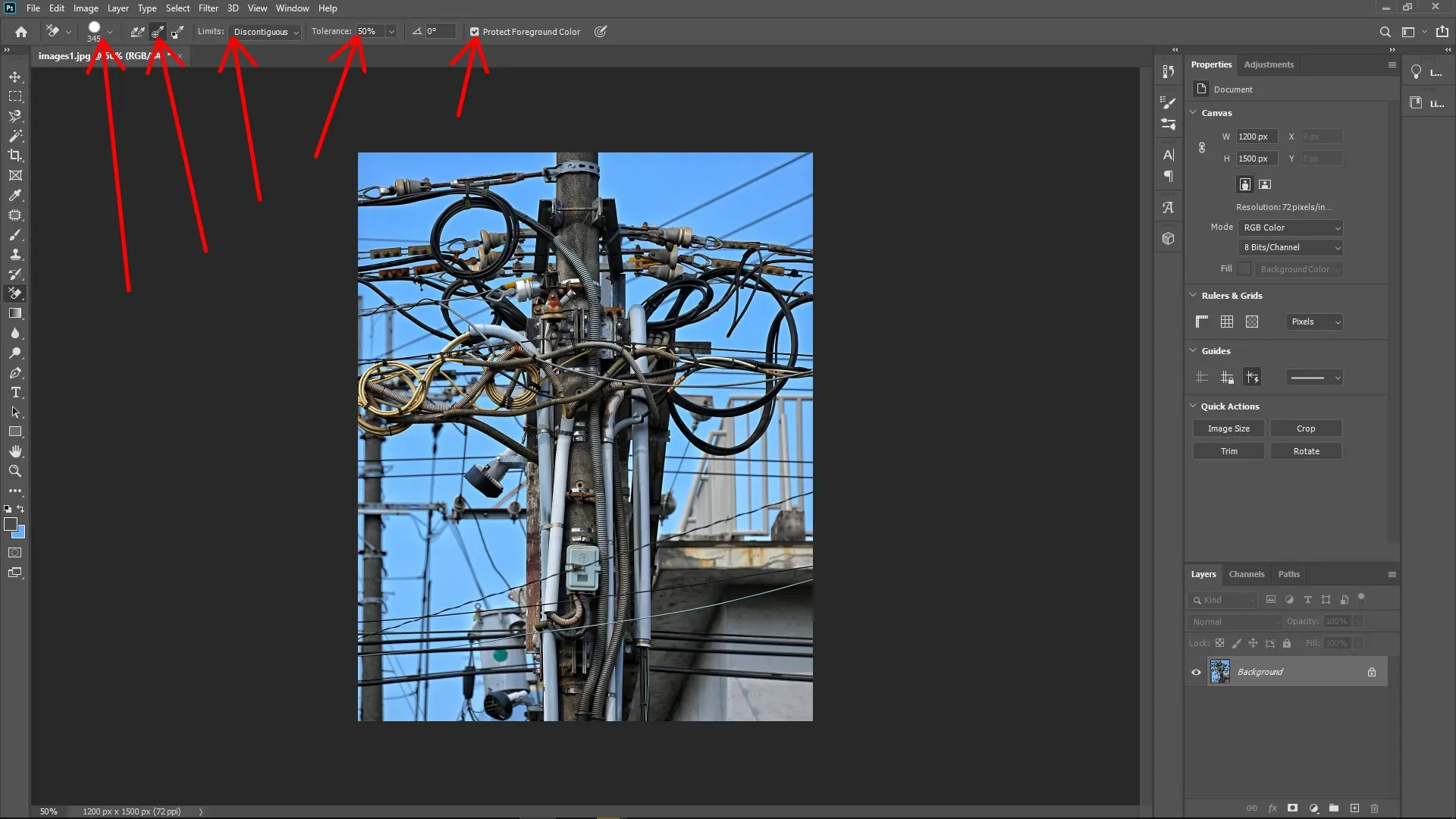
Step 4: Erase the Background
Click and hold the left mouse button on the background area you want to remove and carefully drag over it. The tool will erase background pixels similar to the sampled color, while preserving the foreground objects that match your foreground color setting.
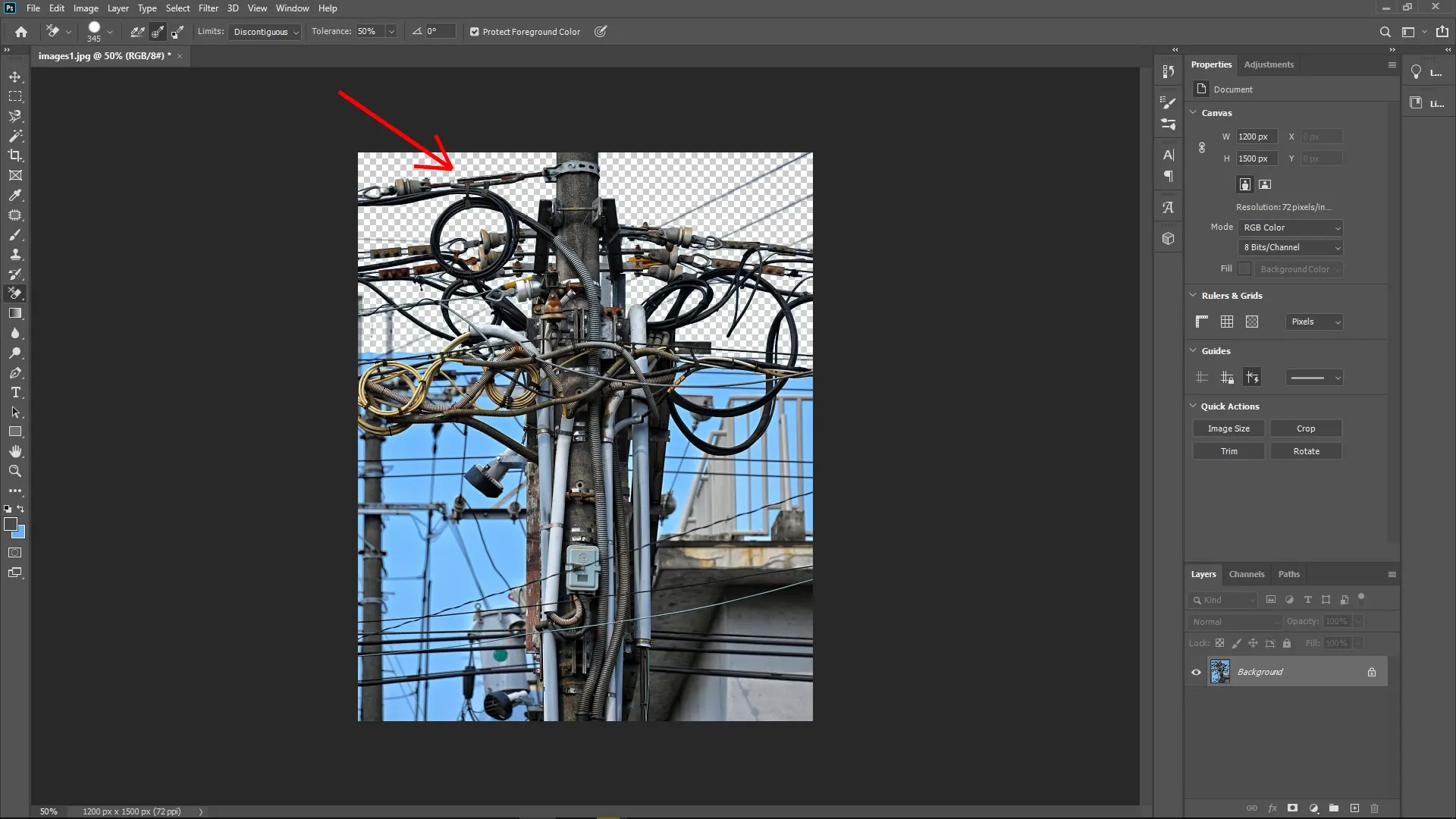
Be patient and zoom in if needed to ensure accuracy, especially in areas where the background and foreground colors might overlap or be close in tone.
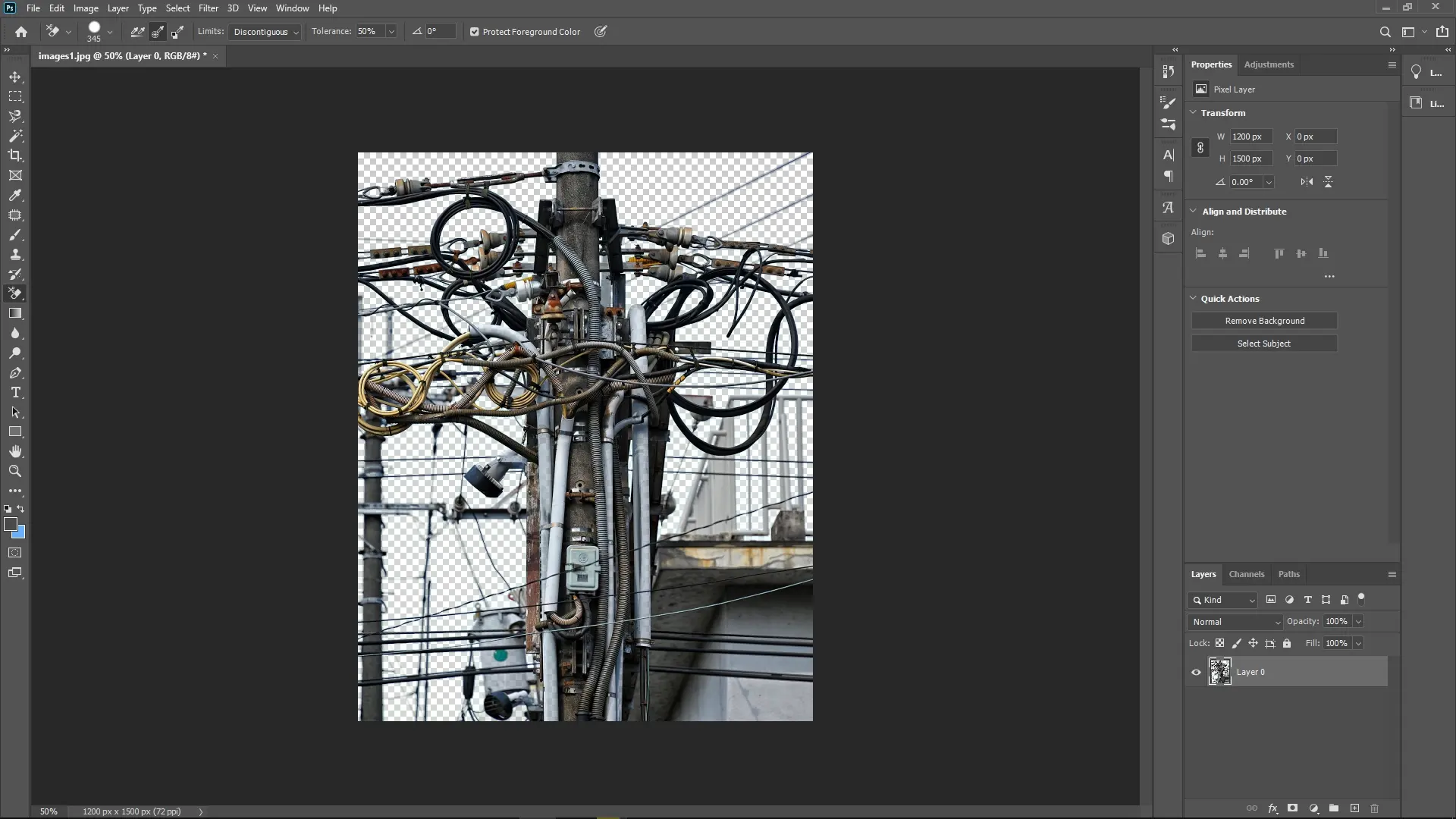
Refine Edges if Needed
After using the Background Eraser Tool, you might want to zoom in and use tools like the Eraser Tool or Layer Masks to clean up any leftover traces or smooth edges.
This method is especially useful for images with fine, intertwined details where simple selection tools struggle. The key is balancing the color sampling and tolerance settings for clean extraction without damaging your subject.
Write Reply